
Training and events with limited seats
Sign-up sheets with limited spots, for Microsoft 365
List your sessions, set how many places each one has, and share the link. Colleagues sign in with their work account and pick a session. Everyone sees how many places are left, and a session closes the moment it fills up.
Free trial. Sign in with your Microsoft work or school account.
Built for whoever organizes it
- Training on several dates
- Events with limited seats
- Workshops and info sessions
- Lunch-and-learns
A sign-up where every session has a limit
No overbooked sessions, no spreadsheet to tidy up afterwards, no emails telling people the one they picked was full.
Sessions
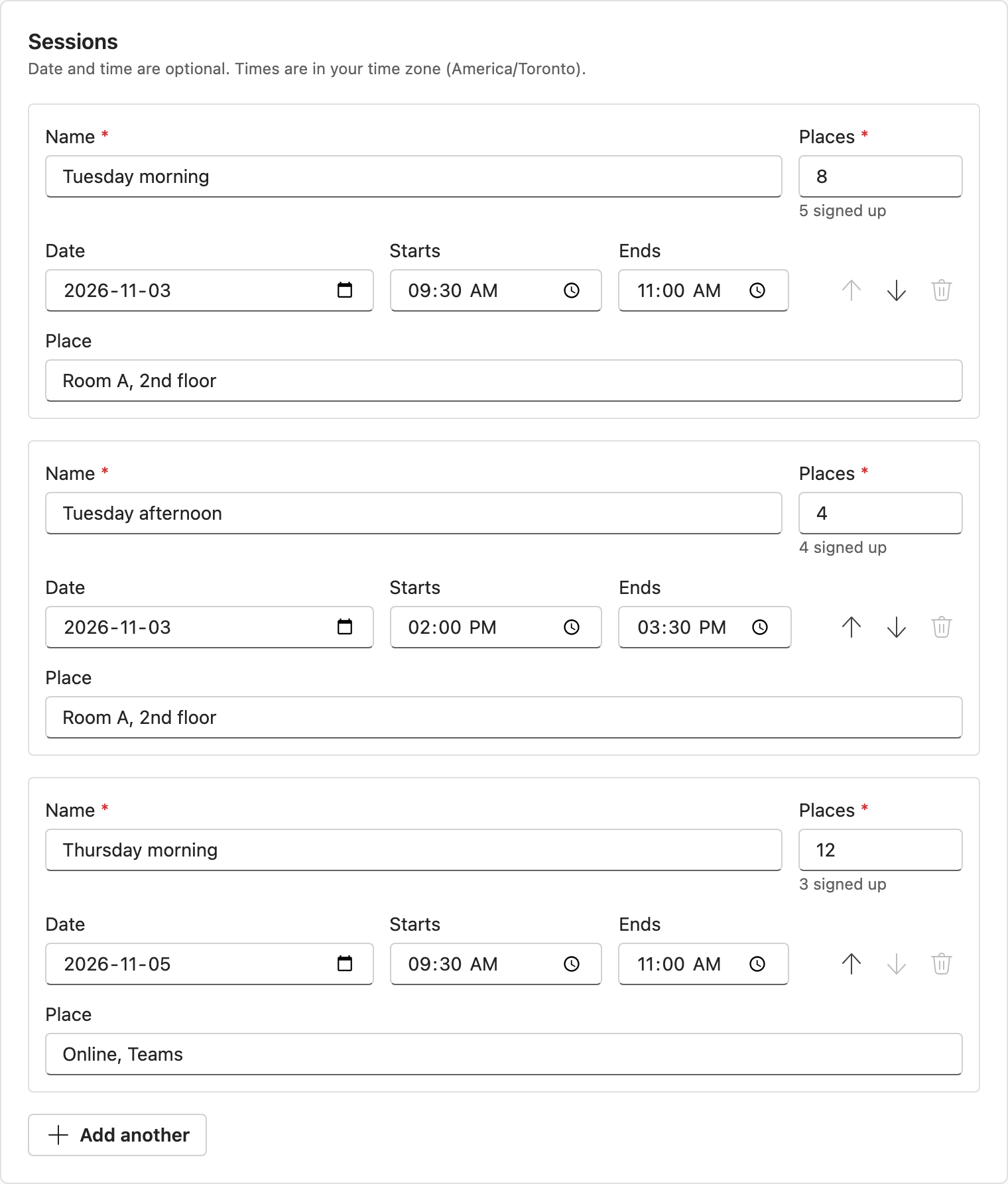
Each session has its own number of places
Give a session a name, a date, a start and end time, a place and a number of places. Add another and it copies the one before, so a course on several dates takes a minute.
Date and time are optional. A session can be just a name, which covers items to bring or options to choose.
Signing up, on a phone
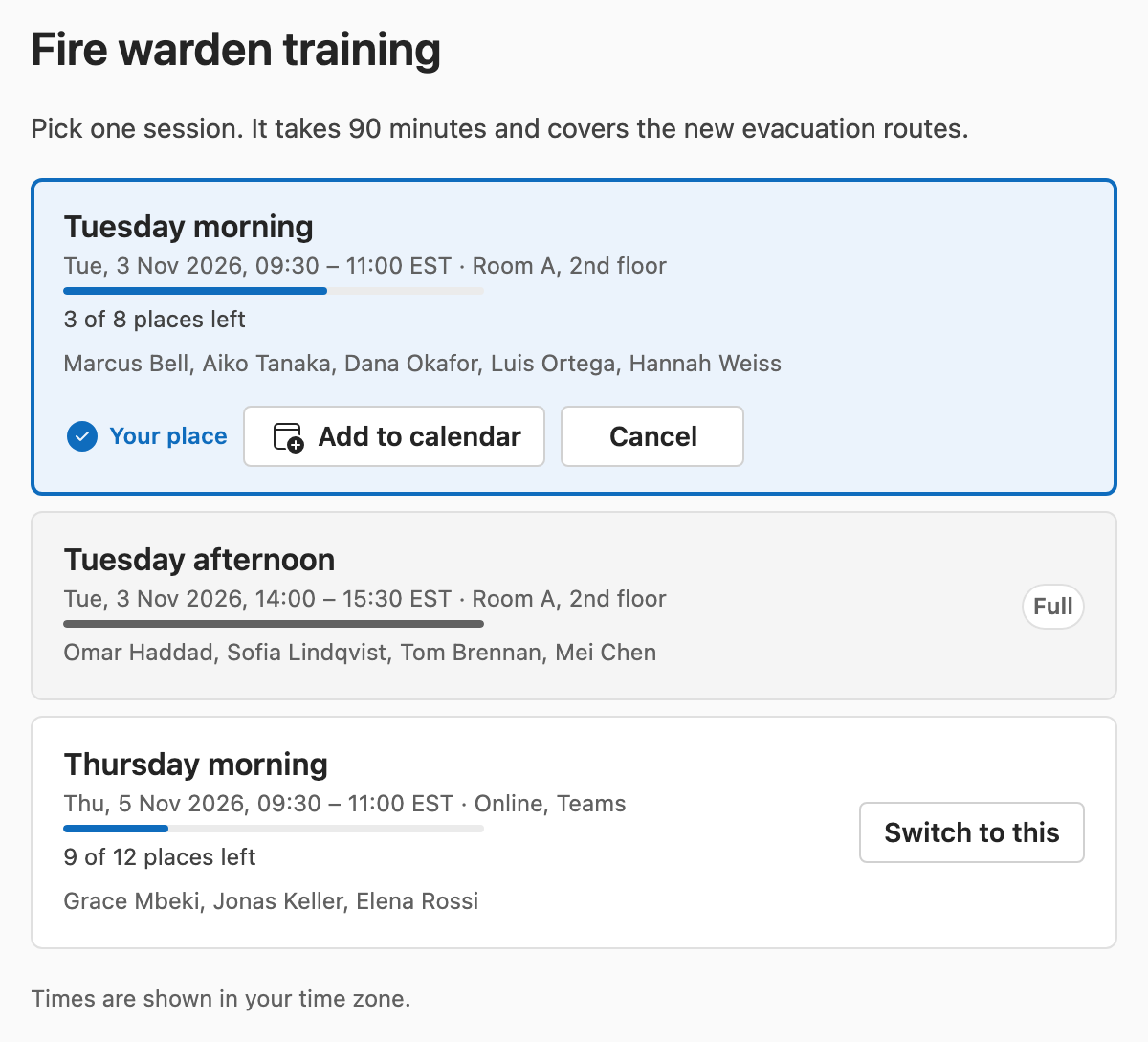
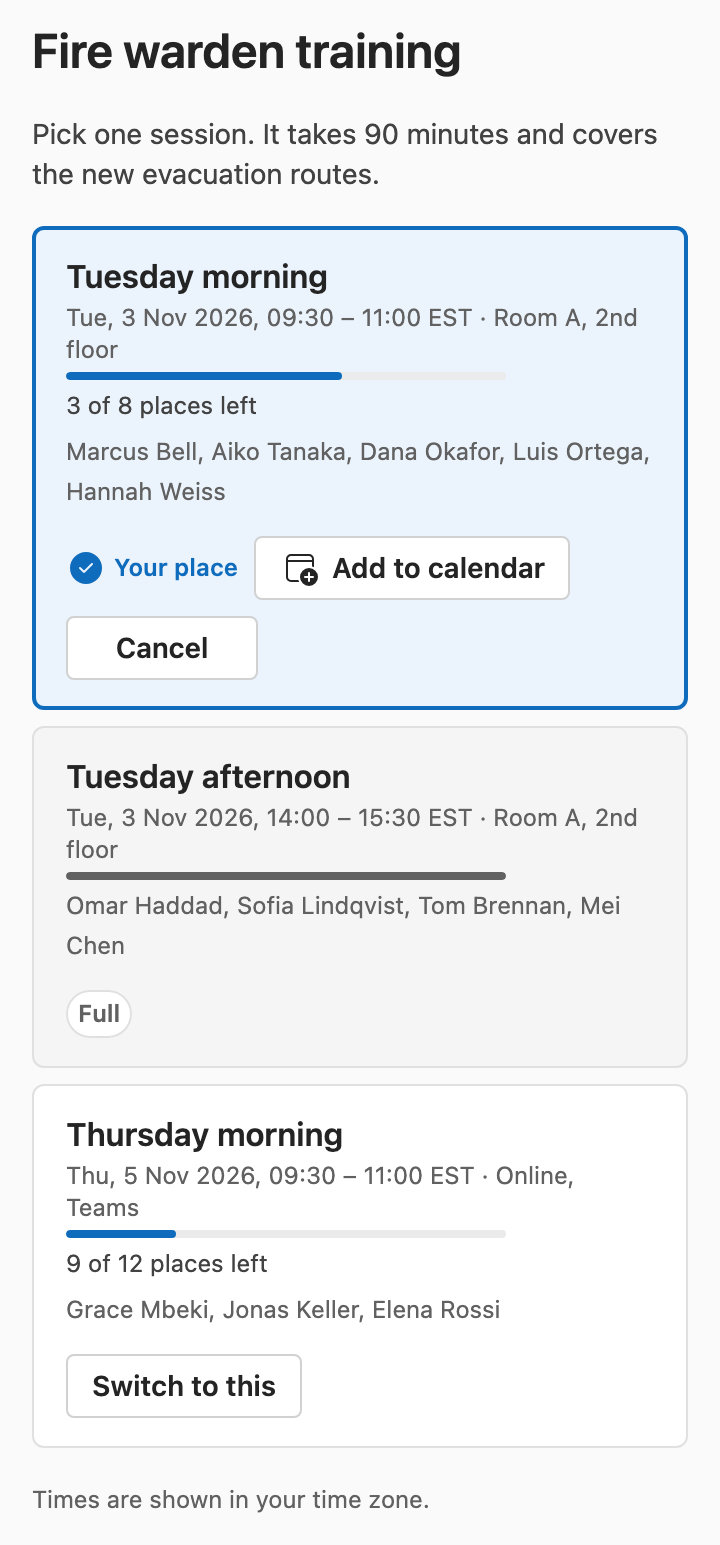
People see what is left and pick
Places left are shown next to each session. A full session is closed at the moment of choosing, so nobody finds out afterwards.
Most people open the link on their phone, from an email, a Teams message or a QR code on a poster. The page is built for that: one column, one button per session, nothing to install.
A confirmation email follows, with a calendar file for the session.
Roster
A live roster, and an Excel file when you need one
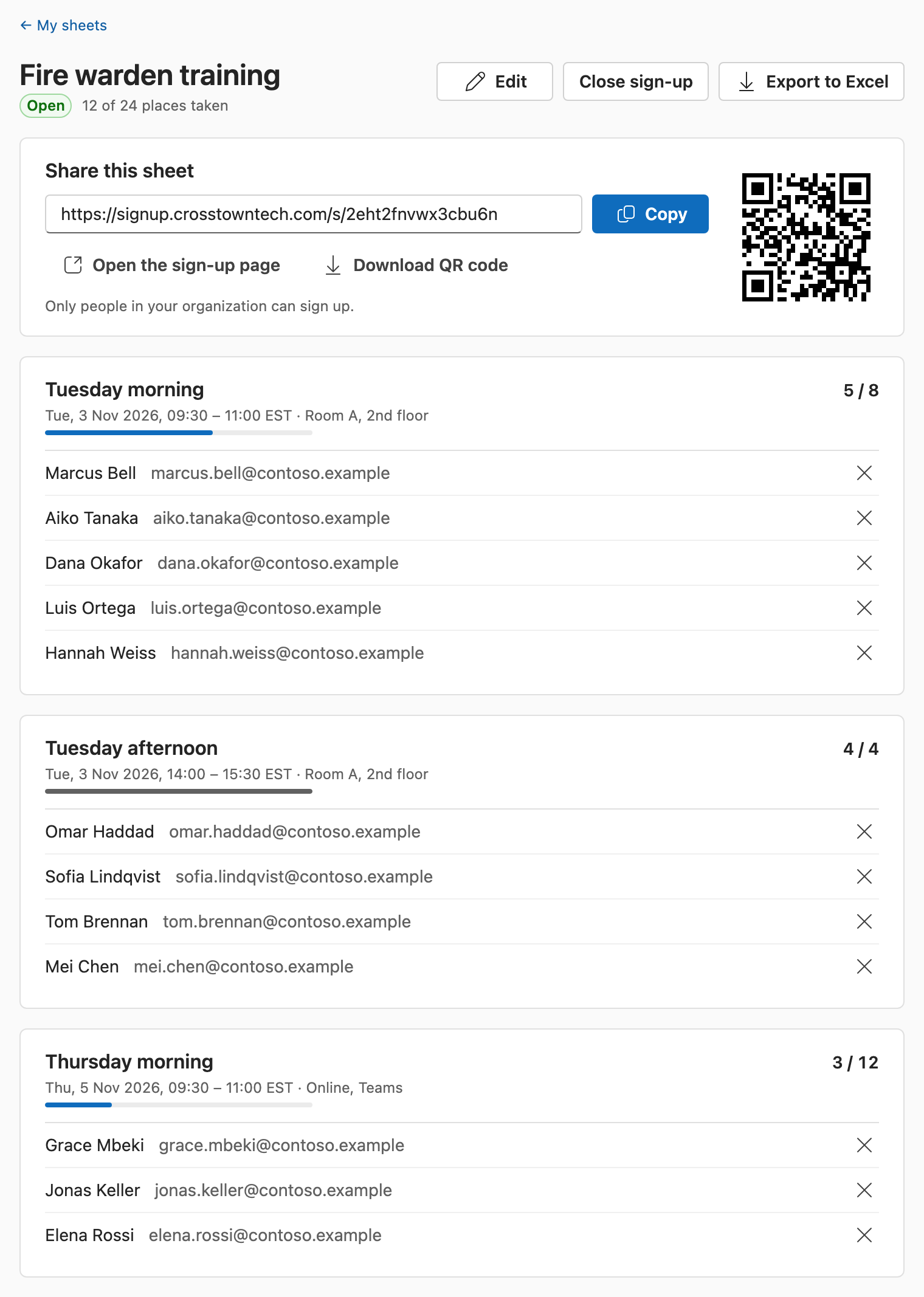
The roster fills in as people sign up: names and work emails per session, places taken out of places offered. Remove someone and their place is free again.
Copy the link or download the QR code from the same page. Export the list to Excel for the trainer or the front desk.
Settings
Your rules for each sheet
One session per person, or several. Names of others visible, or hidden. Sign-up that opens and closes on dates you set.
Keep a sheet inside your organization: only people signing in with an account from it can see the sessions and sign up.
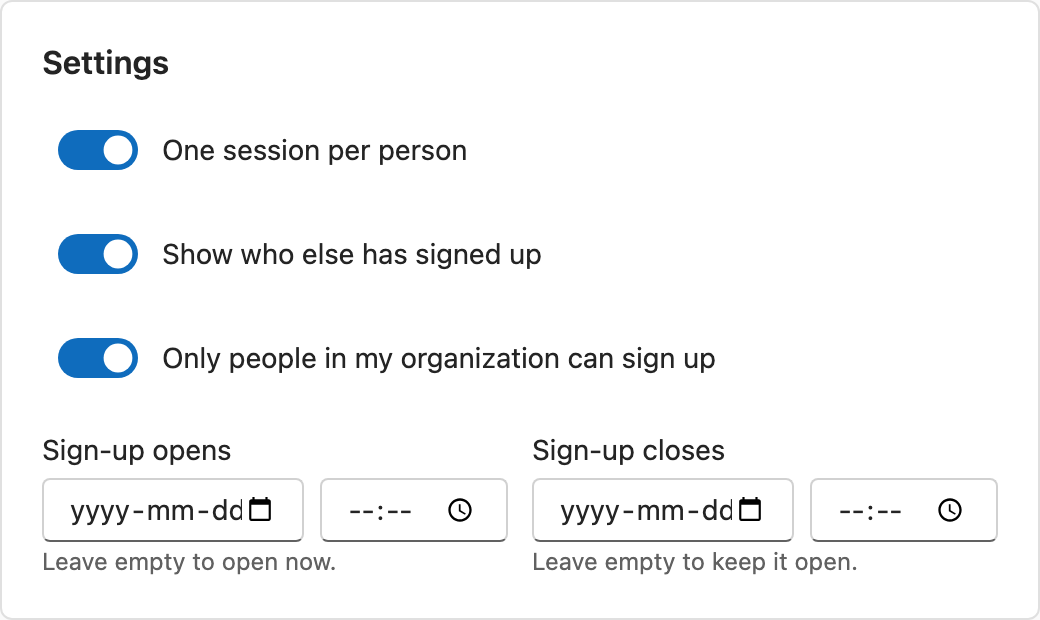
Screenshots: the app with a sample sheet and sample names.
How it works
A sheet takes a few minutes to set up.
- Sign inUse your Microsoft work or school account. There is nothing to install.
- List your sessionsName, date, time, place and number of places for each. Choose the settings.
- Share the linkBy email, in Teams, on a SharePoint page, or as a QR code on a poster.
- Watch it fillThe roster updates as people sign up. Next time, duplicate the sheet.
Asks for little, shows only what is needed
Sign-in asks Microsoft for a name and an email address. Nothing else is read.
Name and email only
No access to calendars, mail, files or your directory, and no Microsoft token is kept after sign-in.
Organizers see their own roster
The organizer of a sheet sees the names and work emails of people signed up to it. Other participants see names only, and only if the organizer turns that on.
Inside your organization
A sheet can be limited to people who sign in with an account from your organization. Full details.
Questions
How do I make a sign-up sheet with limited spots in Microsoft 365?
Sign in with your Microsoft work or school account, create a sheet, and add your sessions. Each session gets a name, an optional date, time and place, and a number of places. Share the link, and colleagues pick a session. A session closes when its places are taken.
Can I limit the number of people per session or time slot?
Yes. Every session has its own number of places, from 1 to 1,000. When two people go for the last place at the same moment, one gets it and the other is told the session just filled up. A session never goes over its limit.
Can I run one training on several dates?
Yes. Put each date on the same sheet as its own session, each with its own places. By default a person can take one session; you can allow several.
How do I share it in Teams, in an email or on a SharePoint page?
It is a link. Paste it into a Teams chat or channel, an email or a SharePoint page. The sheet also gives you a QR code to download for a poster or a slide.
Does it work on a phone?
Yes. The sign-up page is built for a phone first, since most people open it from a link or a QR code. Organizers can also create a sheet and check the roster from a phone.
Do people need to create an account?
No. They sign in with the Microsoft work or school account they already have, so there is no new password. Their name fills in from that account.
Can I keep a sheet inside my organization?
Yes, and new sheets start that way. With the setting on, only people who sign in with an account from your organization can see the sessions and sign up.
What happens when someone can no longer come?
They open the same link and cancel or switch to another session. The place is free again straight away, and you see the change on the roster.
What do I get as the organizer?
A roster that updates as people sign up, with names and work emails per session. You can remove someone, close sign-up, export the list to Excel, and duplicate the sheet for the next round.
What does it ask Microsoft for, and where is the data stored?
It asks Microsoft for your name and email and nothing else: no calendar, mail, files or directory. No Microsoft token is stored. Data is stored in the United States and encrypted in transit.
Set up your next sign-up sheet
List the sessions, set the places, share the link.