 Team Workload
for Microsoft Planner
Team Workload
for Microsoft Planner
Team Workload
for Microsoft Planner
Team Workload
for Microsoft Planner
Unify team workload across every Microsoft Planner plan — see who is doing what, what is overdue, and what is due this week.
We read your Planner data directly. No Power Automate setup.
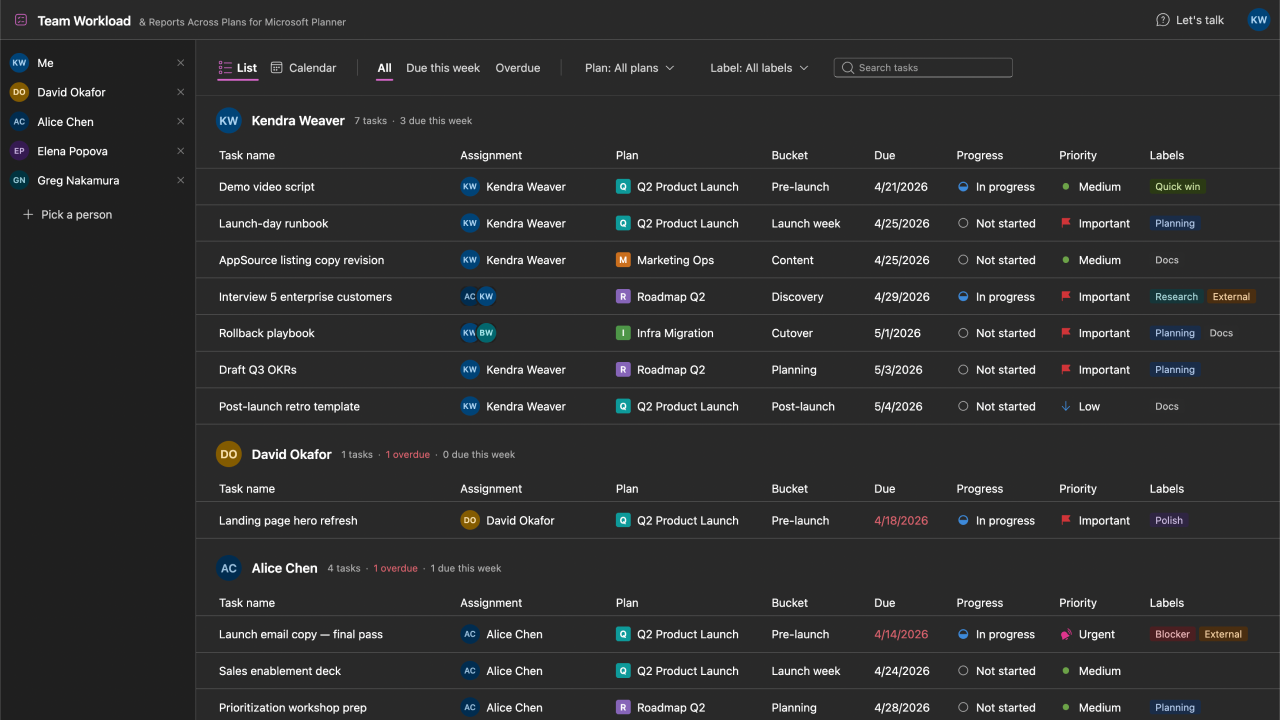
See every task assigned to every team member across every Microsoft Planner plan, grouped in one list. Skip the click-through-every-plan routine.
One-click filters for overdue and due-this-week, with per-person counts alongside every name. Know who is behind and who has capacity before your next standup or 1:1.
Switch between a compact task list and a month-grid calendar that places every task on its due date. Filter by plan or label.
One shell, five views, and a people scope that narrows all of them at once — recorded against real plans, no slides.
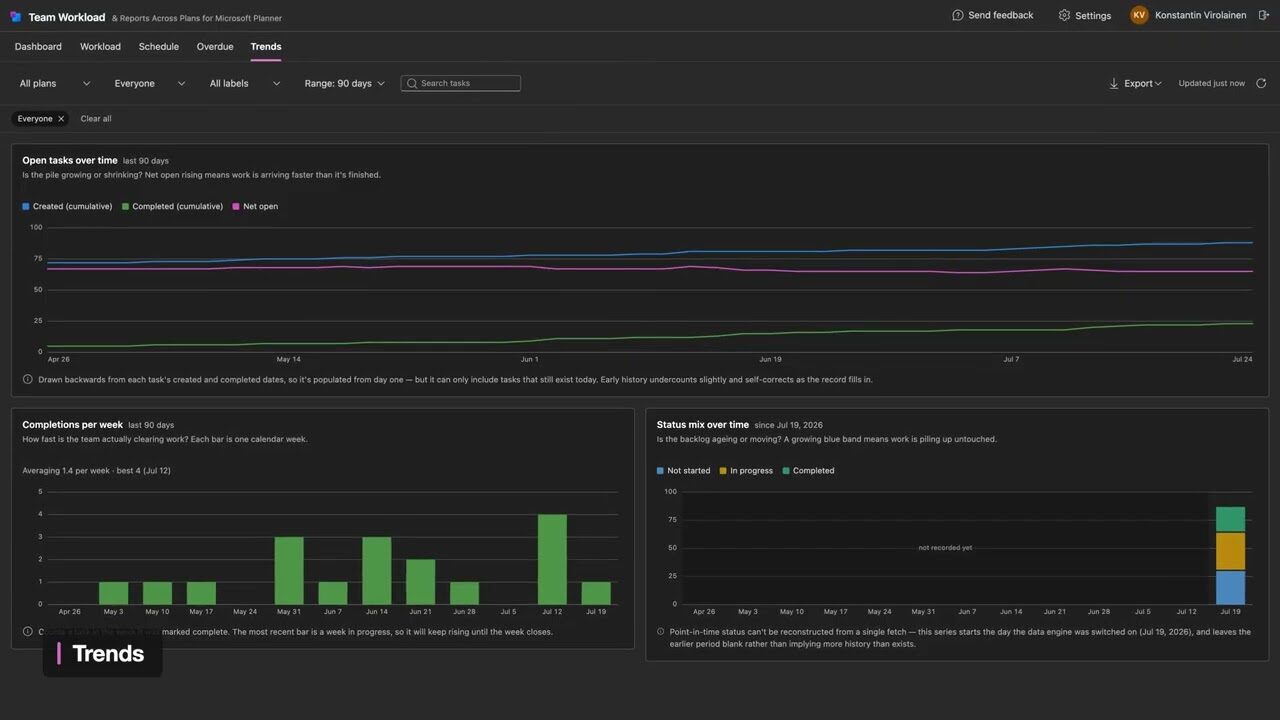 1:13
1:13
No sign-up needed to watch. Sound on for the voiceover.
A workload planner turns Planner's plan-by-plan task lists into a per-person view: one place that shows everything a teammate is on, no matter which plan it lives in. Planner itself organises tasks by plan, and its People view works inside a single plan — so there is no built-in screen that answers "what is this person carrying right now?" across all of them. That per-person, cross-plan view is what Team Workload adds. More on what the new Planner does and does not show.
No. The usual workarounds are a Power Automate flow copying tasks into a SharePoint list, or a Power BI report built over Microsoft Graph — both of which you then own and maintain. Team Workload reads your Planner data directly, so there is no flow to build and nothing to keep in sync.
Only the plans you already have access to in Microsoft Planner. Team Workload does not widen your permissions — it reads the same plans you can open yourself and groups them by person. Some Microsoft 365 organisations also require a tenant admin to approve the app before anyone can sign in; there is a button for that just below.
Need admin approval first?
Some Microsoft 365 orgs require a tenant admin to approve Team Workload before users can sign in. If sign-in shows "Need admin approval", start here.