
Microsoft Planner’s Timeline view (its Gantt chart) is in premium plans only. Basic plans have no timeline. The premium Timeline has no print button; it exports to PDF, and long plans split across pages. Planner has no way to put a timeline on a PowerPoint slide. If you need a timeline in a status deck, the options are a screenshot, a redraw, or a tool that builds the slide from your plans. This page covers each.
Which Planner plans have a Timeline view?
Premium plans. Microsoft’s basic vs premium comparison lists “View tasks in Timeline (Gantt chart)” as No for basic and Yes for premium. The same table puts dependencies and the critical path on the premium side too.
So a team running basic plans in Teams or Planner has no timeline at all. To get one natively, each plan has to be converted to premium, which needs a premium license. Can Planner Portfolios mix basic and premium plans? covers that path and its limits.
How do you print a Planner timeline?
There is no print command. What exists:
- Export to PDF from the premium Timeline. In a 2023 Microsoft AMA, a Microsoft staff member said the Timeline “can also be exported to a PDF file for easy sharing.” A user in the same thread asked for a fit-to-one-page option because long timelines split.
- Export plan to Excel. Available on basic and premium plans. It gives task rows, not a chart.
- Screenshots or the browser’s Save as PDF. These are still the answers in a recent Planner forum thread, where users describe a timeline that runs past one screen “both down and across.”
A PDF works for a handout. It doesn’t work for a deck: you can’t edit a bar, shorten a task name or drop the tasks leadership doesn’t need to see.
How to put a Planner timeline on a PowerPoint slide
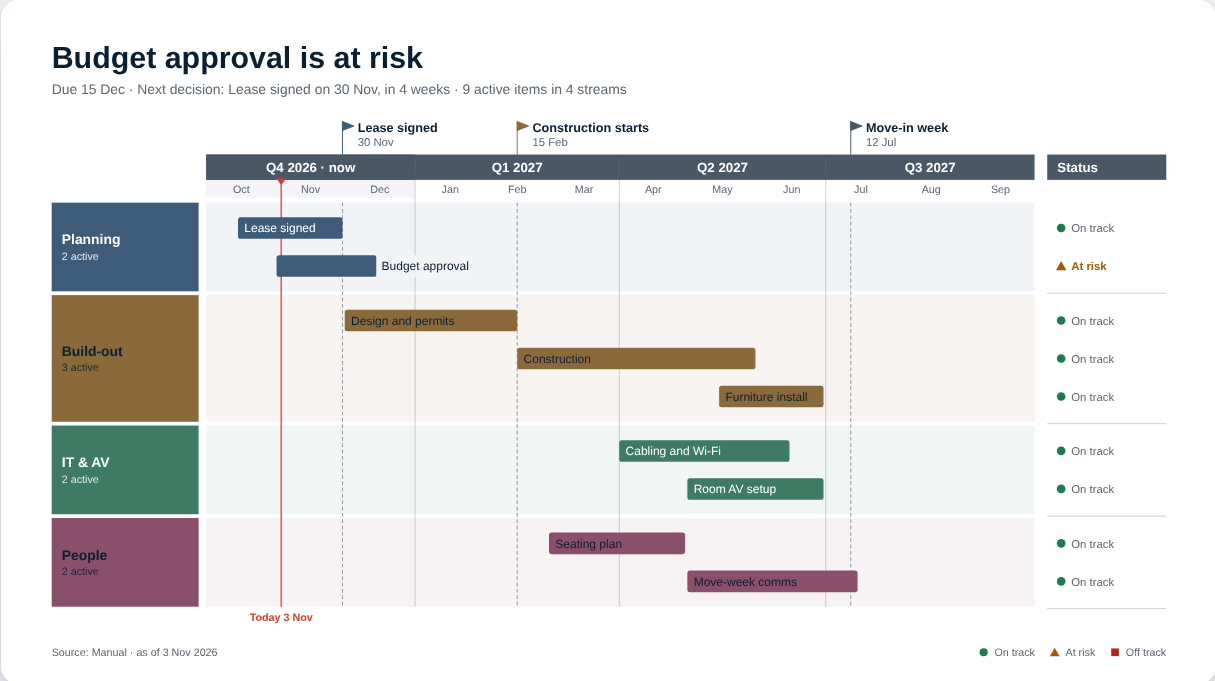
Roadmap Slides builds the timeline slide from the plans you already have:
- Sign in with your Microsoft work account and tick the plans, basic or premium. Each plan becomes a row.
- Pick the Timeline layout. Set the status per item (On track, At risk, Off track, Done), add key dates as milestones, and filter what’s on the slide.
- Download for PowerPoint. The slide is made of native PowerPoint shapes and text, so bars, labels and the title stay editable. Several slides can go in one file, or download a slide as a PNG.
Planner access is read-only. Roadmap Slides reads the plans you can open and reads them again so the slide stays current; nothing is written back to Planner.
If the audience only needs the dates that matter, the Milestones layout puts each stream on one line with its key dates and a “next” column:
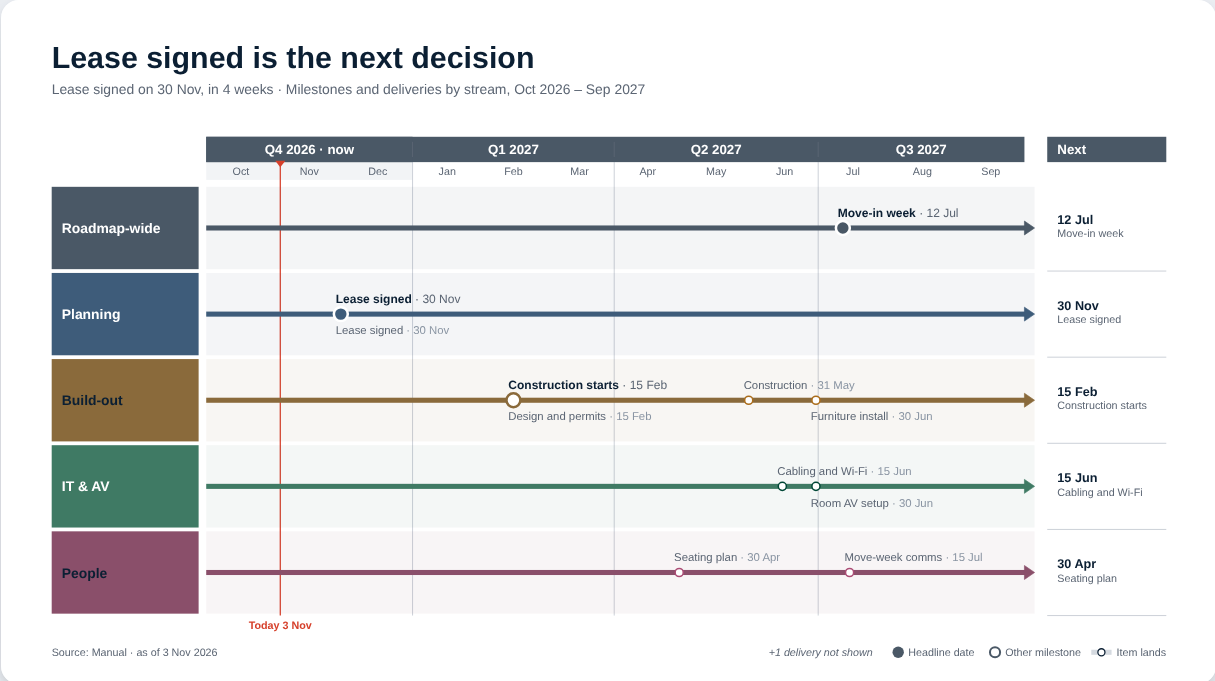
Try it on sample data in the project roadmap demo, no sign-in needed. Or install it from the Microsoft Marketplace listing.
A presentation timeline, not a Gantt scheduler
Roadmap Slides is for showing a timeline, not for planning one. It doesn’t link dependencies, calculate a critical path or edit tasks. If you schedule work day to day, keep doing it in Planner. For a day-to-day view of dates across every plan, see all your Planner plans in one calendar.
| Planner Timeline (premium) | Roadmap Slides | |
|---|---|---|
| Plans it reads | One premium plan | Basic and premium plans, several per slide |
| Edit tasks and dependencies | Yes | No, read-only |
| Export to PDF | Download as PNG | |
| PowerPoint | No | Editable PowerPoint slide |
| Layouts | Timeline | Timeline, Now Next Later, Quarters, Milestones, Status, Phases |
Several plans on one timeline
Inside Planner, the cross-plan timeline is the Roadmap tab in Portfolios, which per Microsoft Support holds premium plans only. Microsoft Planner roadmap across all your plans covers Portfolios, the retired Project for the web Roadmap, and the roadmap slide.