
Azure DevOps extension
Plan sprint capacity in story points
Your team estimates in points. Now plan the sprint in points too: everyone's capacity filled in from their last sprints, days off taken out, and who is over as you plan.
Free trial. For Azure DevOps Services organizations.
Built for teams that estimate in story points
- Scrum masters
- Team leads planning a sprint
- Product owners
- Delivery managers with several teams
Sprint planning, in the unit you estimate in
A Points capacity tab on every team's sprint, next to Capacity and Analytics.
Filled in
Capacity from each person's last sprints
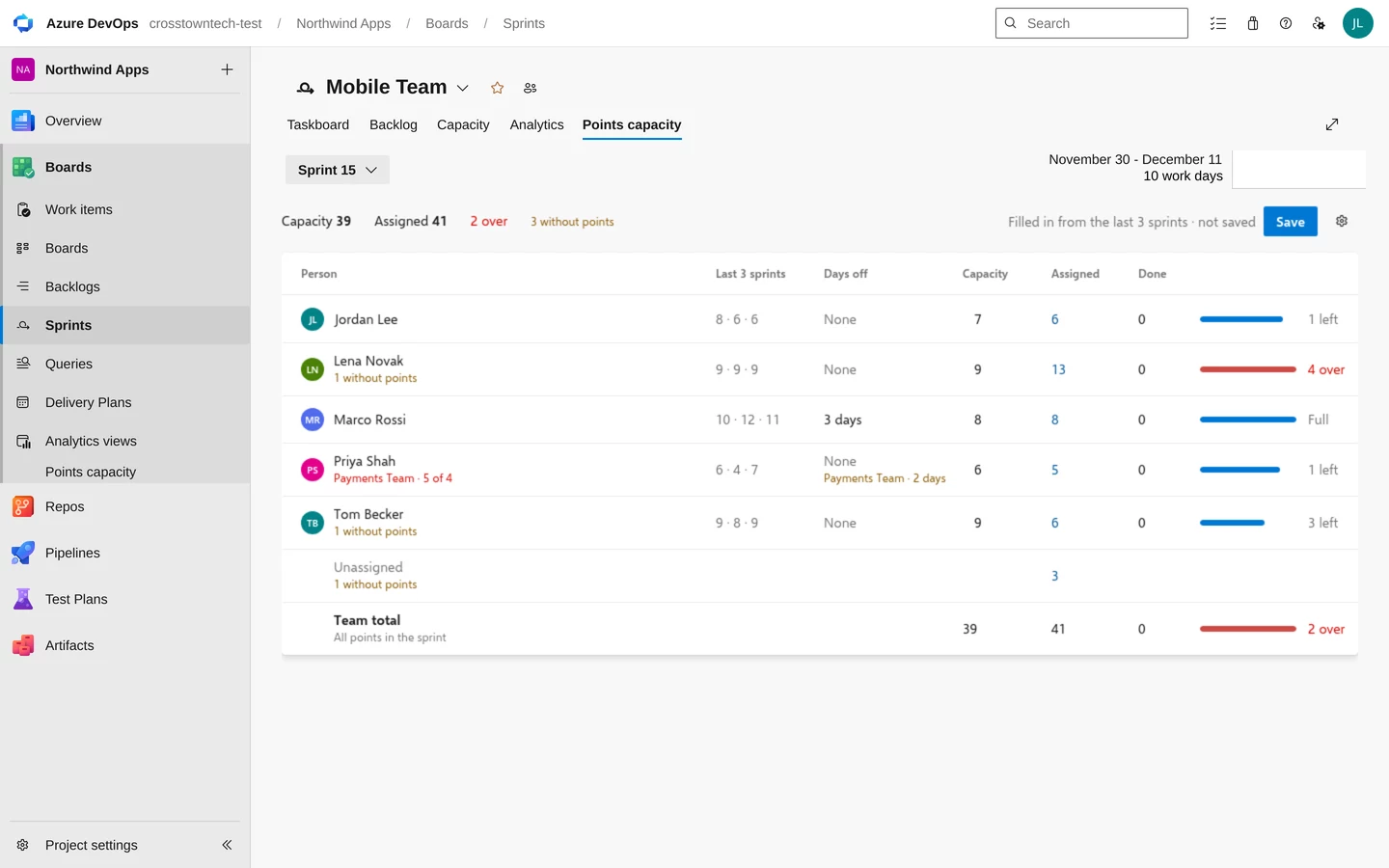
Open a sprint and choose Points capacity. Everyone's capacity is filled in from the points they finished in their last 3 sprints on the team, and the tab shows those sprints beside the number, so the fill-in explains itself.
Days off come from the Capacity tab you already keep: a person out 3 days of 10 gets less. Change any number, then Save, and the whole team sees the same plan.
Nothing hidden
Who is over, and what has no points
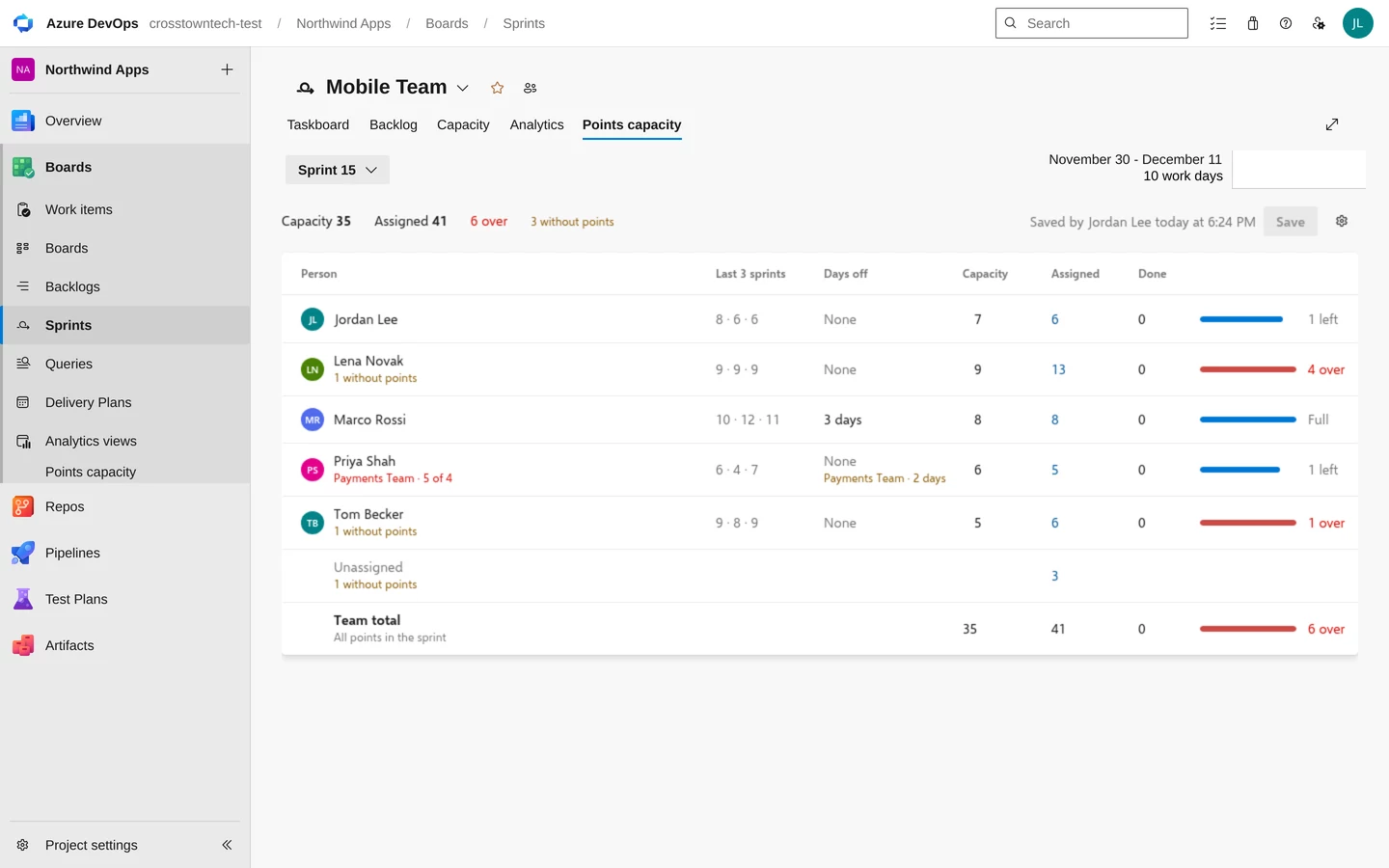
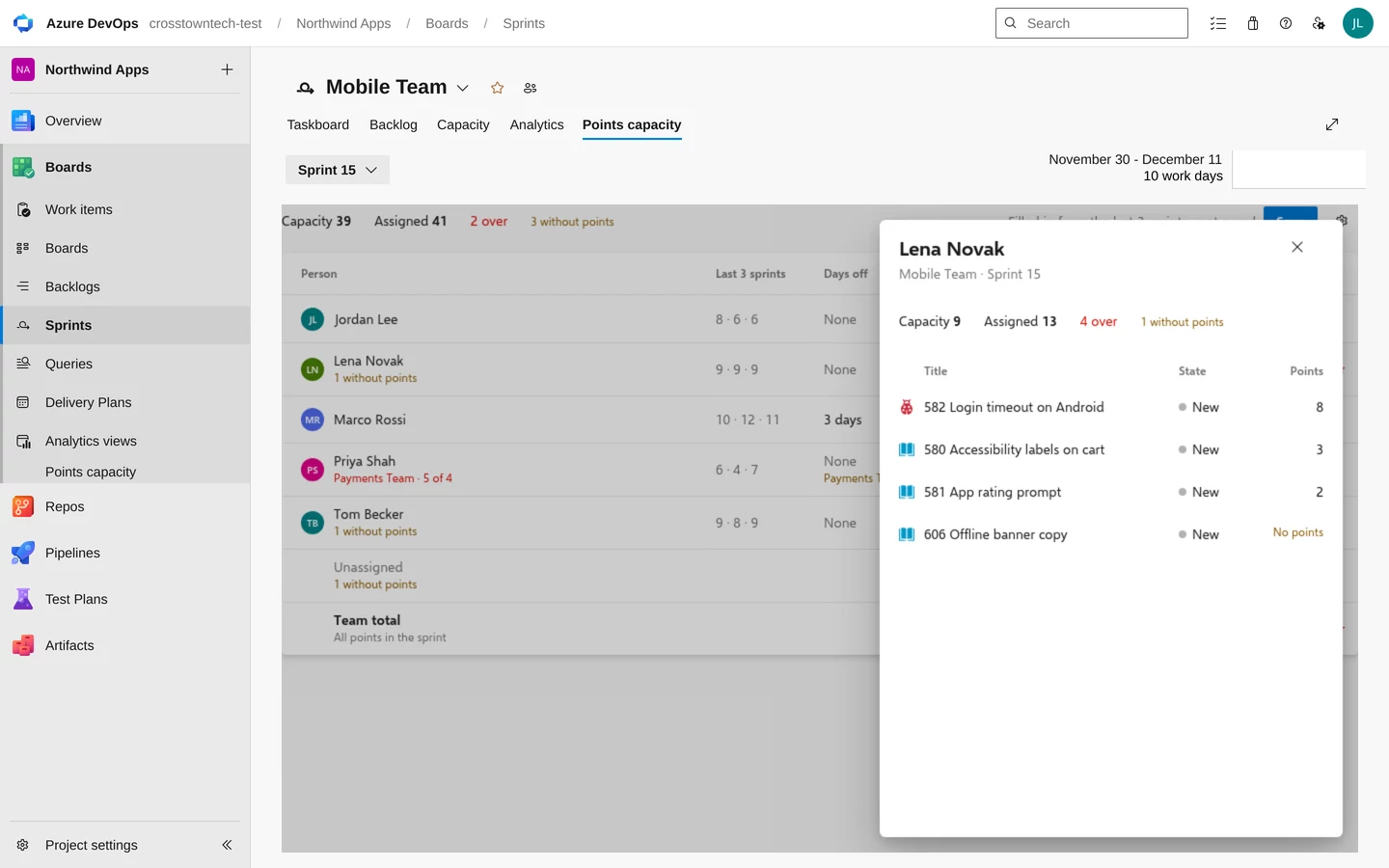
Each person's bar turns red the moment their assigned points pass their capacity. Click the assigned number to see their items, and their load on other teams this sprint.
Items nobody estimated count as 0, so the app says how many there are, right under the person. The Team total row counts every point in the sprint, unassigned work included.
Beside the backlog
Plan while you drag work in
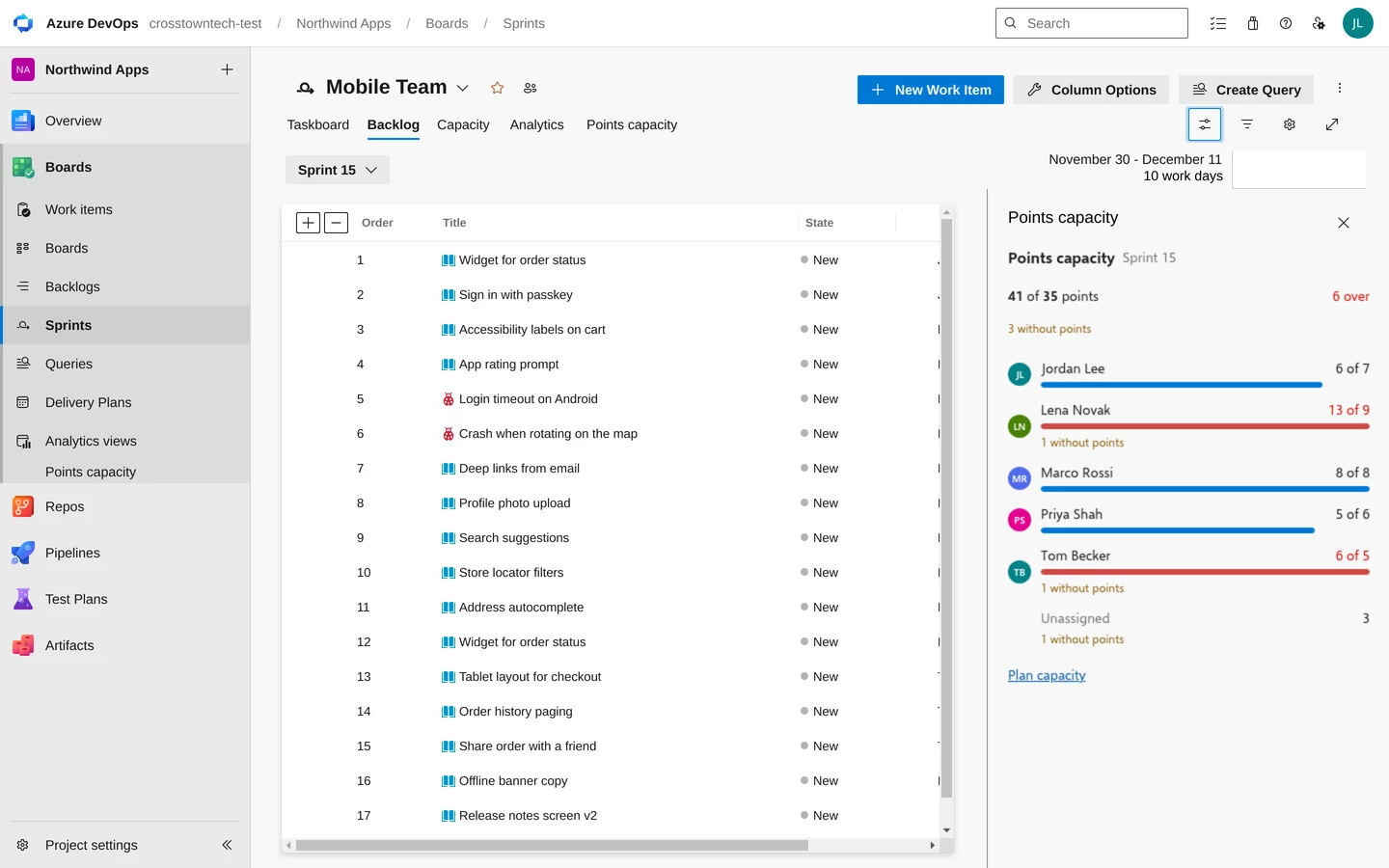
Turn on Points capacity in the sprint backlog's side pane. It keeps each person's points against their capacity next to the backlog, and refreshes while it is open.
See it in 70 seconds
Plan a sprint, save it, and check every team at once.
One person, several teams
People who work on two teams get planned twice. The hub shows them once.
Across teams
Every team at once, one row per person
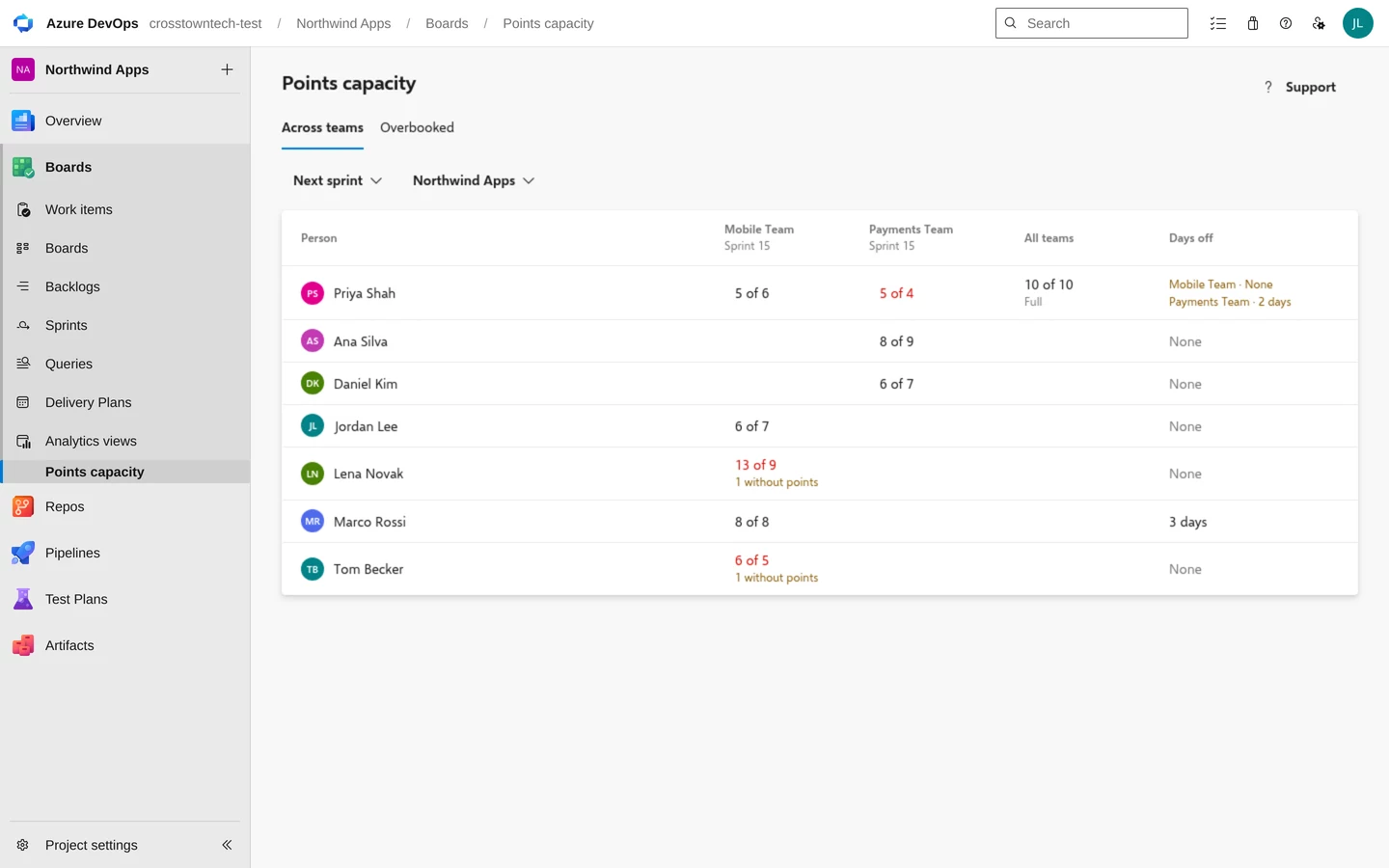
Boards › Points capacity shows each person's points against capacity on every team they are on, for this sprint or the next, with a total for people on several teams. When someone's days off differ between teams, it says so.
Overbooked
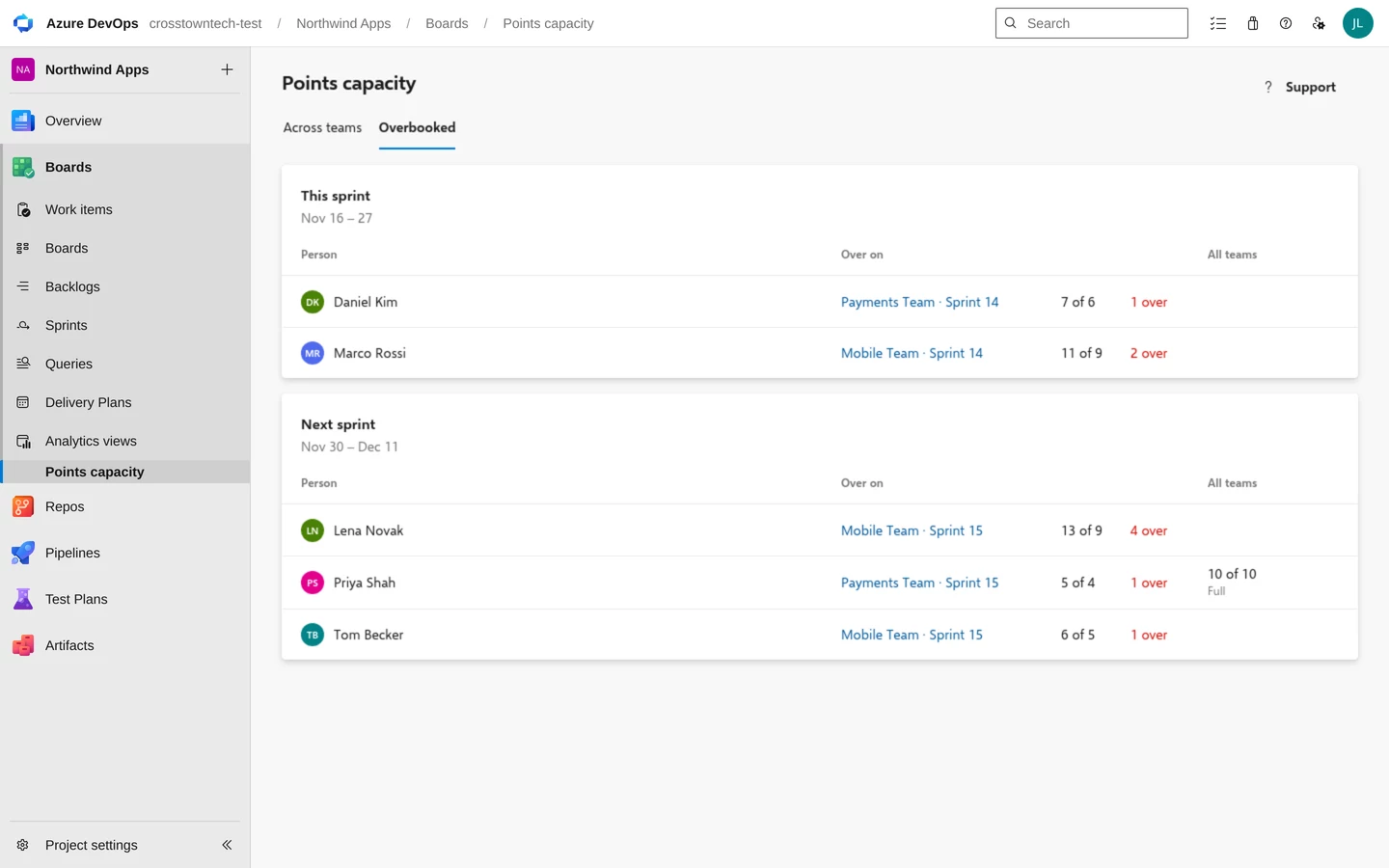
Everyone over capacity, this sprint and next
One list of who has more than they can do, with the team and sprint it happens on and the link to fix it.
Per team
Your field, your types
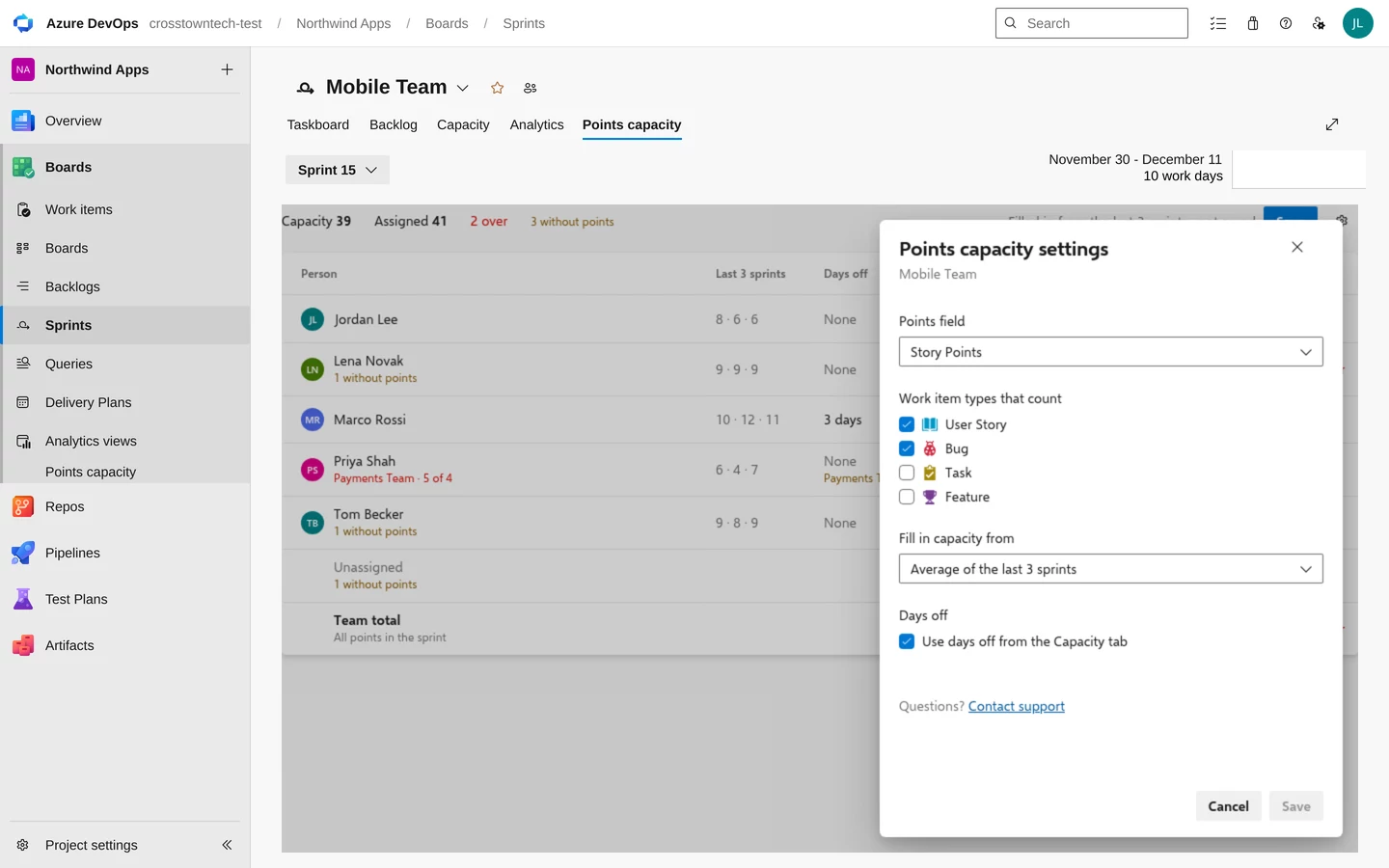
Each team picks its points field (Story Points, Effort, Size or a custom number field), the work item types that count, how many past sprints to average, and whether days off lower capacity.
Screenshots and video: the extension in a demo Azure DevOps organization with sample names.
Up and running in a minute
- Install itAn Azure DevOps organization admin installs Sprint Capacity in Story Points from the Visual Studio Marketplace.
- Open a sprintIn Boards › Sprints, pick a team and a sprint, and choose the Points capacity tab.
- Save the planCheck the filled-in numbers, change what you know better, and select Save.
Questions
How do I plan sprint capacity in story points in Azure DevOps?
Install Sprint Capacity in Story Points, open a team's sprint and choose the Points capacity tab. Each person's capacity is filled in from the points they finished in their last sprints, reduced for the days off on the Capacity tab. Change any number and select Save.
How is each person's capacity filled in?
From the points they finished on the team in the last finished sprints (3 by default, 1 to 6 in Settings), averaged at full availability and scaled for the working days they have this sprint. The exact rule.
Does it use the days off from the Capacity tab?
Yes. It reads each person's days off and the team's days off from the native Capacity tab and lowers the fill-in to match. It never writes to the Capacity tab.
What about work items without points?
They count as 0, and the app says how many there are next to every number they could hide in: under the person, in the summary, in the person's item list, in the side pane and across teams.
Can I see one person's load across several teams?
Yes. Boards › Points capacity shows one row per person with a column per team, for this sprint or the next, and an Overbooked list of everyone over capacity. On the sprint tab, a person on another team shows that team's load under their name.
Does it work with Scrum and Effort?
Yes. Each team picks its points field (Story Points, Effort, Size or a custom number field) and which work item types count.
Where are the capacity numbers stored?
In your own Azure DevOps organization, in the extension's data storage. No capacity numbers, team names or work item content reach our backend. What the extension reads and stores.
Plan sprints in the points you estimate in
Filled in, adjusted for days off, and saved for the whole team.
Free trial. Questions? Contact support.