
Recurring work items for Azure Boards
Work that comes back, created on schedule
Sprint ceremonies, on-call handovers, monthly reports, patching. Make any work item recurring once, and a fresh copy shows up every week, month or sprint, in the right sprint, with its tasks, fields and the next person's name on it.
Free trial. For Azure DevOps Services organizations connected to Microsoft Entra ID.
Built for whoever copies the same items every sprint
- Scrum masters
- Team leads
- Ops and on-call teams
- Project managers
Set it up once on the work item
The item you already have becomes the template. Nothing to rebuild, no rules to write.
Schedules
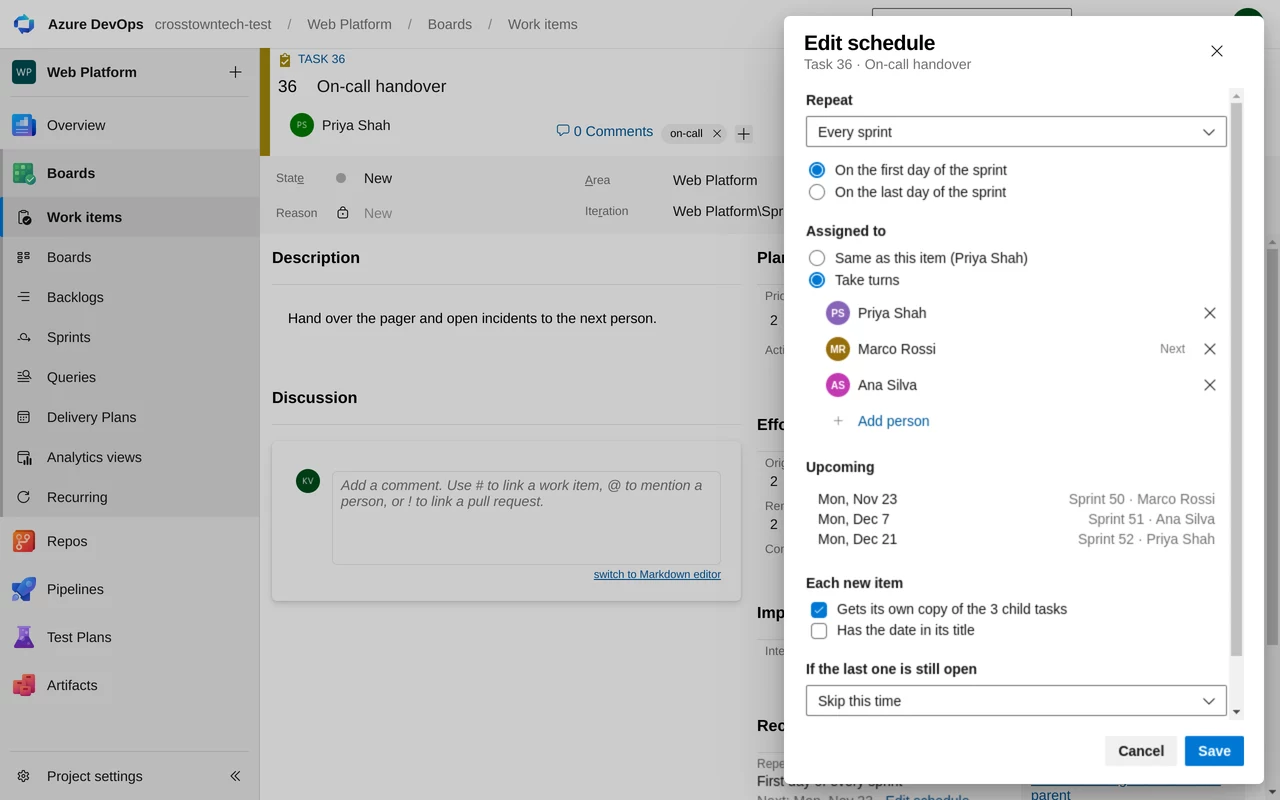
Schedules like a recurring meeting
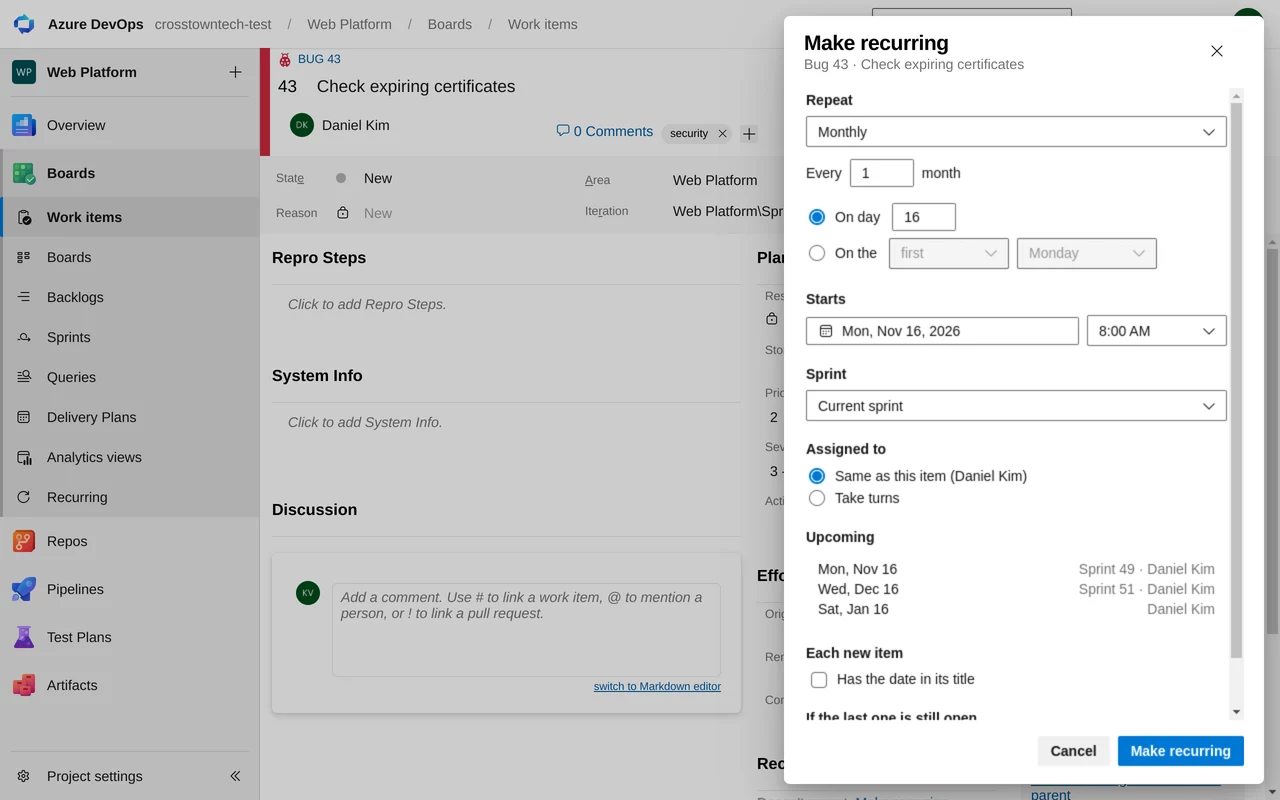
Daily or every weekday, weekly on chosen days, monthly on a date or a weekday like the second Tuesday, quarterly, yearly. Or at the start or end of every sprint, or a set number of days after the last one closes.
Upcoming shows the next three dates and the sprint each one lands in, before you save.
On the work item
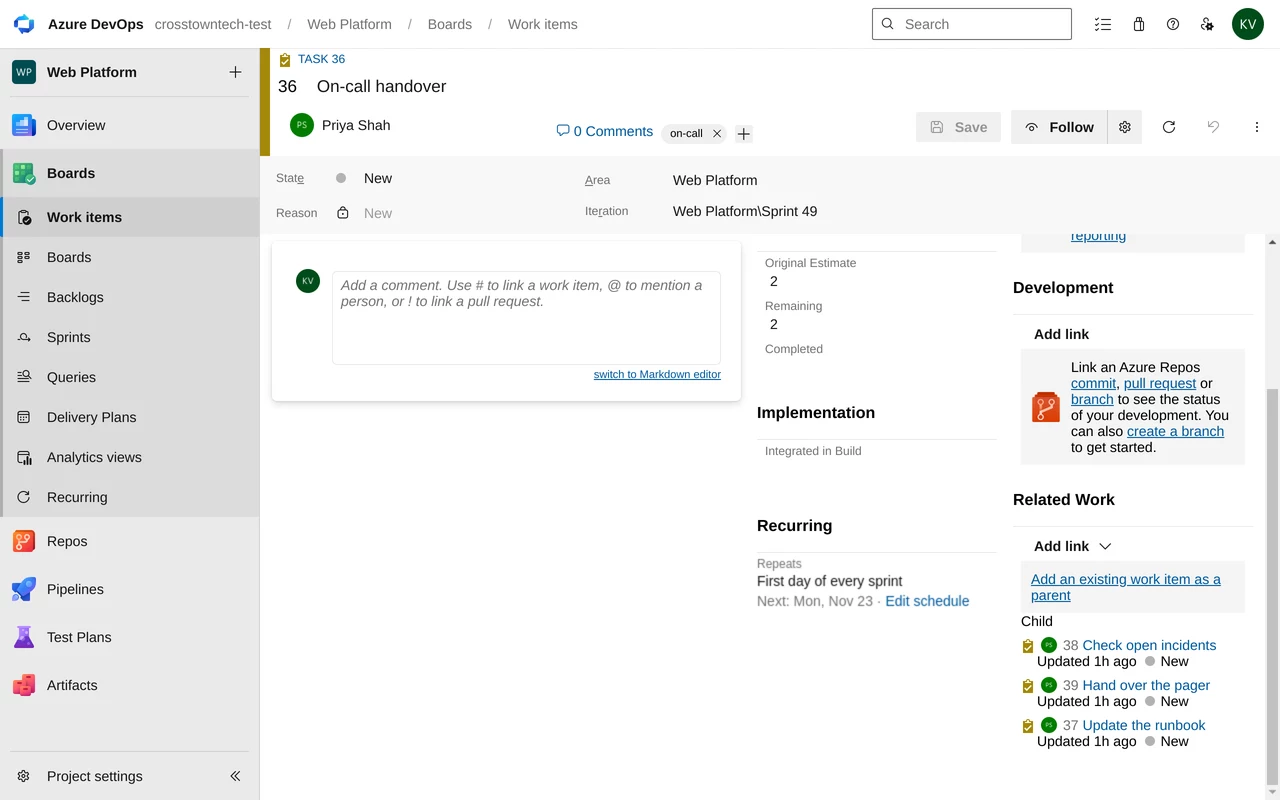
The work item says how it repeats
A Recurring group on the form shows the schedule and the next date, with a link to edit it. The ⋯ menu says Edit schedule on an item that repeats.
Each copy carries the original's fields, tags, area and parent, and its own copy of the child tasks. Add the date to the title if you want copies told apart at a glance.
See it in 76 seconds
Make an item recurring every sprint, rotate who gets it, then run one early from the Recurring page.
A project's schedules in one place
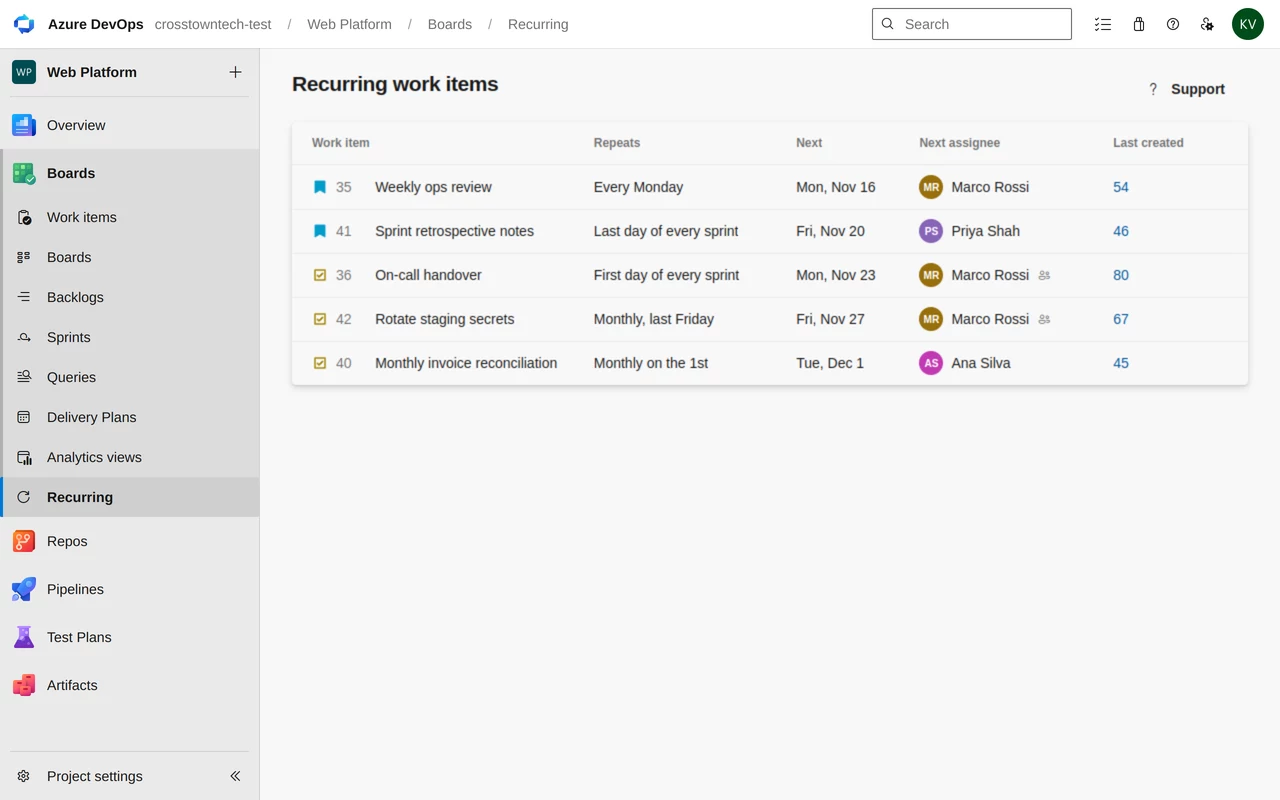
Boards → Recurring lists what repeats, when it runs next and who is up.
The Recurring page
Pause, skip once, or create one now
Each row has its next date, the next assignee and the last copy. From the row menu: create one now, skip the next one, pause, edit the schedule or open the work item.
History
Every copy, and why one was skipped
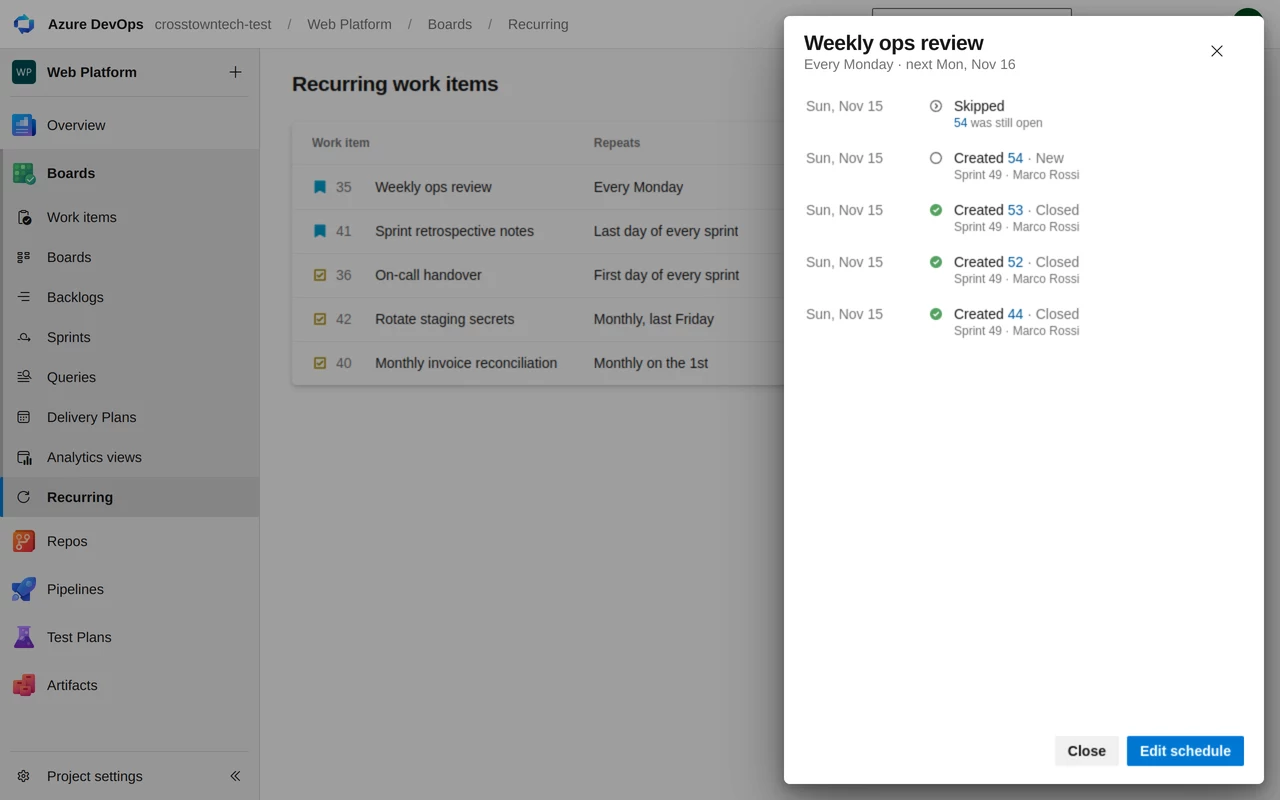
Select a row to see each run: the item it created, its state, the sprint it landed in and who it went to. When a copy is skipped because the last one was still open, the history says which one.
If a run can't create its copy (the original was deleted, or the assignee left the project), the schedule pauses and the row says why.
Screenshots and video: the extension in a demo Azure DevOps organization, with sample names.
Up and running in a minute
- InstallAdd Recurring Work Items to your organization from the Visual Studio Marketplace.
- Connect onceOpen Boards → Recurring and select Connect. Copies are created with that Microsoft sign-in, on time, even when nobody is online.
- Make it recurringOpen any work item, select ⋯ → Make recurring, pick a schedule and save.
Questions
How do I make a work item recurring in Azure DevOps?
Install Recurring Work Items, open the work item you want to repeat, select the ⋯ menu and Make recurring. Pick how often it repeats, the sprint each copy lands in and who it goes to, then save. The original becomes the template; each copy is a new work item with its fields, tags and child tasks.
Can a work item be created at the start of every sprint?
Yes. Choose Every sprint and the first or last day of the sprint. The copy is created in that sprint, using your team's sprint dates. Other schedules can land in the current sprint, the next sprint, or the same sprint as the original.
Are the child tasks copied too?
Yes, by default. Each new item gets its own copy of the original's child tasks, linked under it. You can turn that off per schedule.
Can the assignee rotate between people?
Yes. Choose Take turns and add people from the project's teams. Each copy goes to the next person in the list; the schedule shows who is next.
What happens if last week's copy is still open?
You choose per schedule: skip this time, or create a new one anyway. A skipped run shows in the schedule's history with the item that was still open. You can also repeat a set number of days after the last one is closed.
Does someone need to be online for copies to be created?
No. Someone in the organization connects once on the Recurring page with their Microsoft sign-in, and copies are created on time from then on, even when nobody is online.
Who can set up or change a schedule?
Members of the organization who can edit work items in that project. People who can only read the project can see schedules but not change them. What the extension reads and stores.
Stop copying the same work items every sprint
Set it up once. It shows up on time.
Free trial. Questions? Contact support.