
Email to work items for Azure DevOps
Customer emails become work items
Connect your team's Microsoft 365 support mailbox. Every email that arrives becomes a work item with its attachments and requester, and your team replies from the work item. The reply goes out from your own mailbox, and the answer comes back to the same work item.
Free trial. For Azure DevOps Services organizations connected to Microsoft Entra ID, with mailboxes in Microsoft 365.
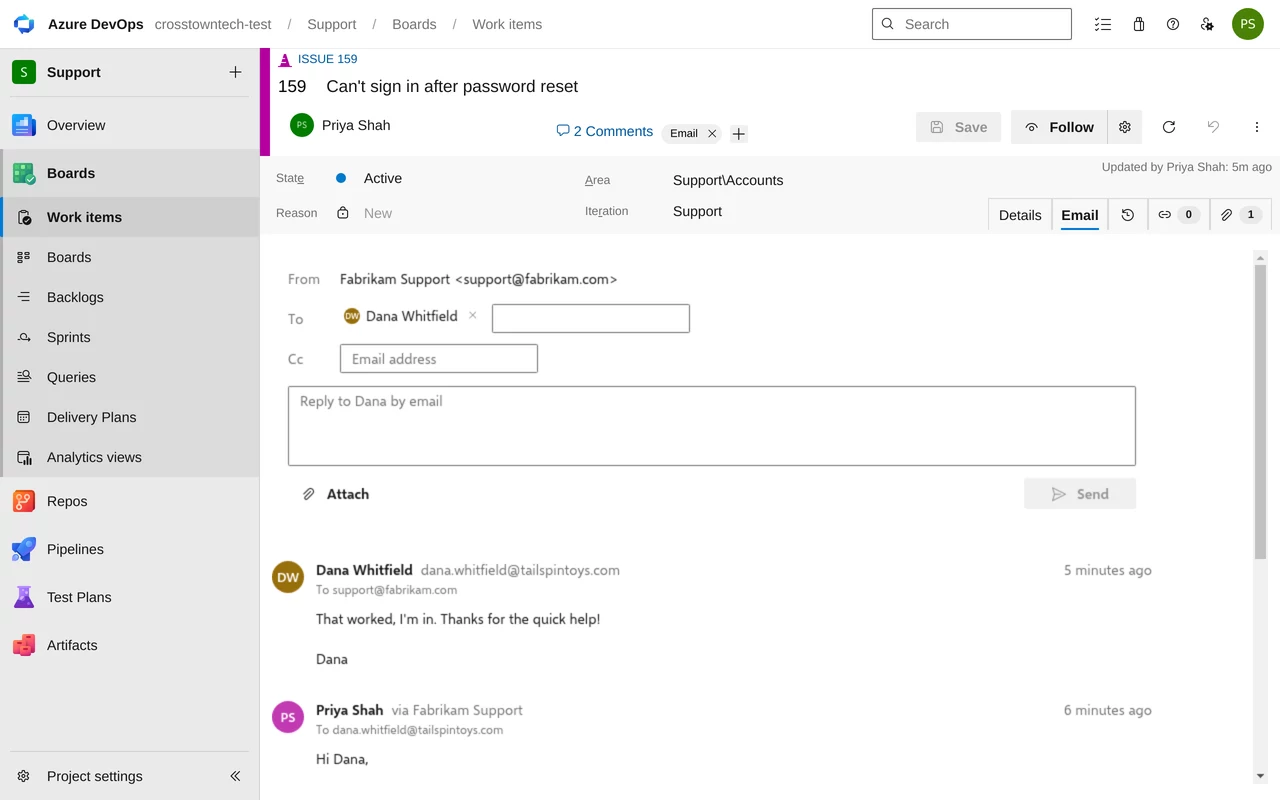
Built for teams that take requests by email and work in Azure Boards
- Support teams
- IT help desks
- Product teams with a feedback inbox
- Ops teams
Your mailbox, your work items
No forwarding rules and no new address for customers to learn. The desk is the mailbox you already use.
Desks
One desk per mailbox
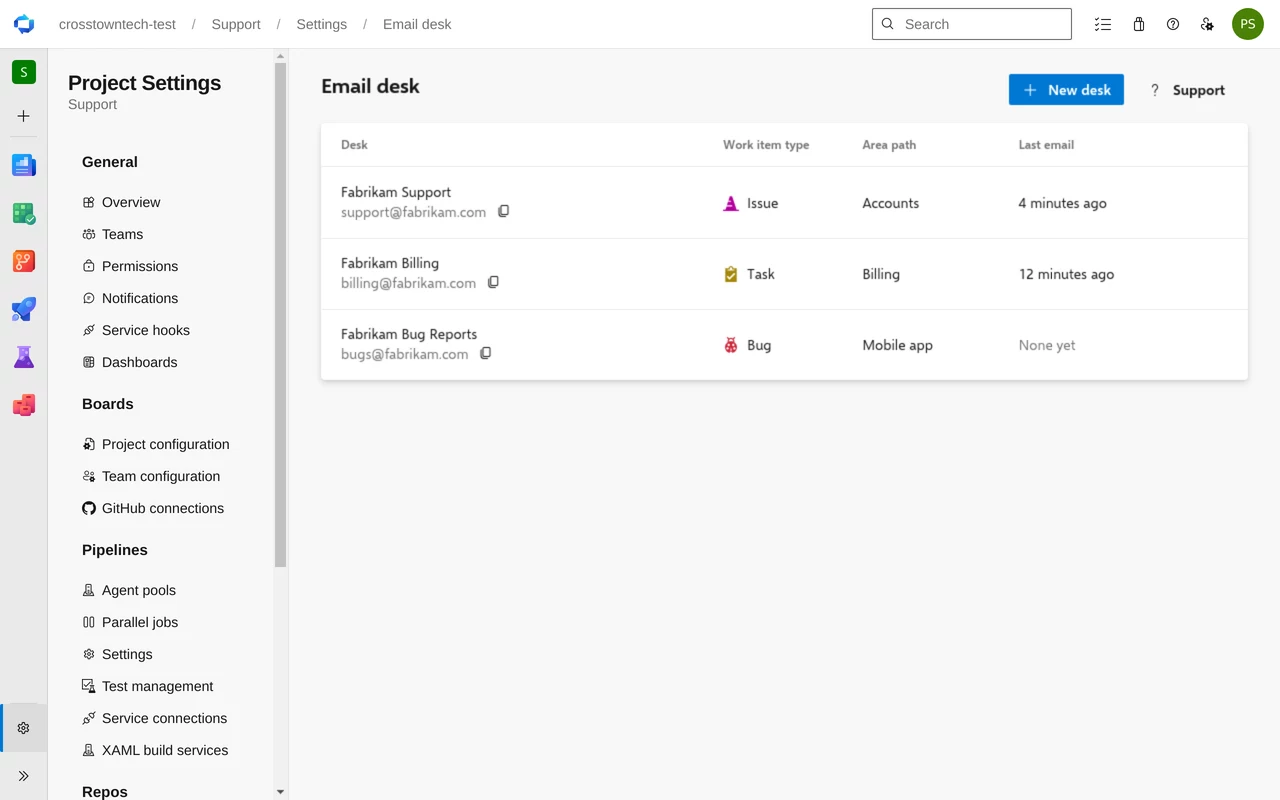
Add a desk for support@, another for billing@. Each one files its emails as its own work item type, in its own area, assigned to its own person, with its own tags and priority.
The mailbox decides where an email goes. Desks live in Project settings → Email desk.
Connect
Your Microsoft 365 admin allows it once
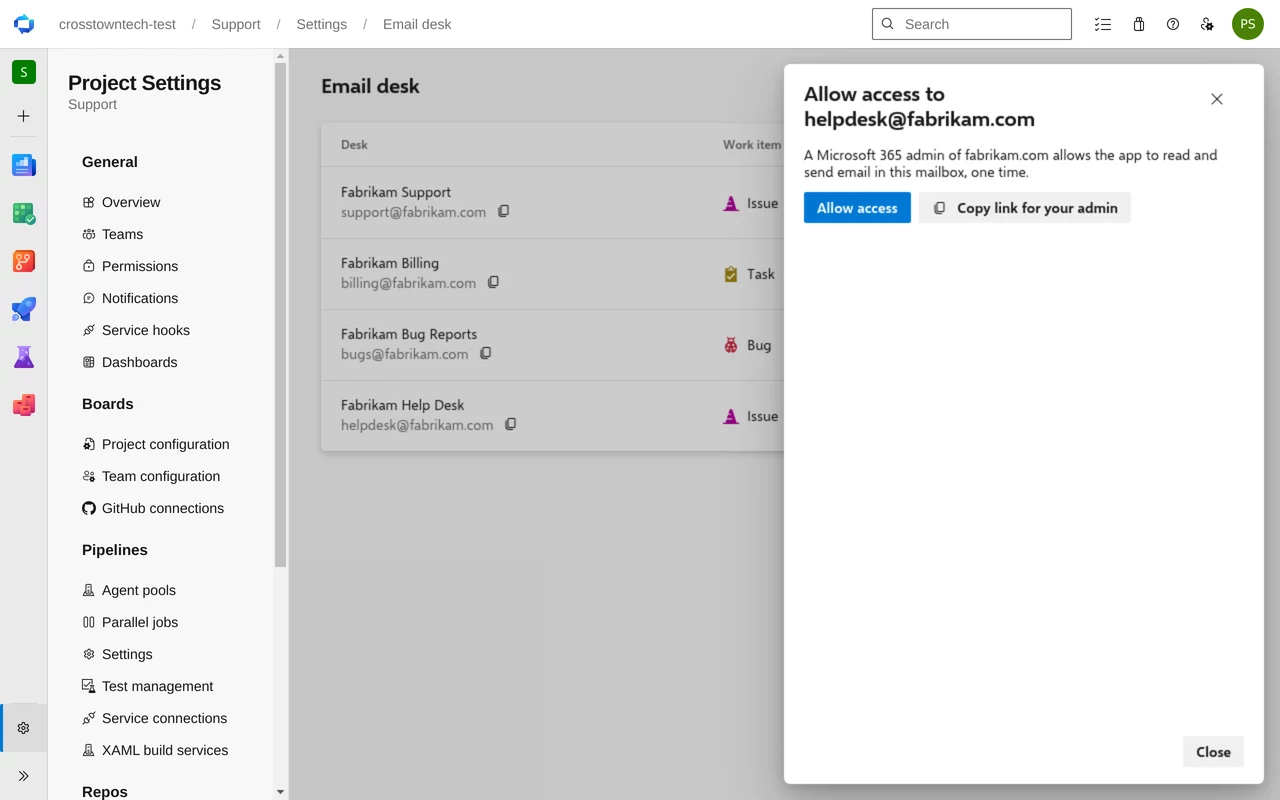
Enter the mailbox's address. If you're the Microsoft 365 administrator, select Allow access and accept Microsoft's consent screen. If not, copy the link and send it to your admin. The desk connects by itself once they allow it.
From then on, new emails in the mailbox become work items within a minute. Nothing in the mailbox is moved, marked read or deleted.
On the work item
The email is the work item
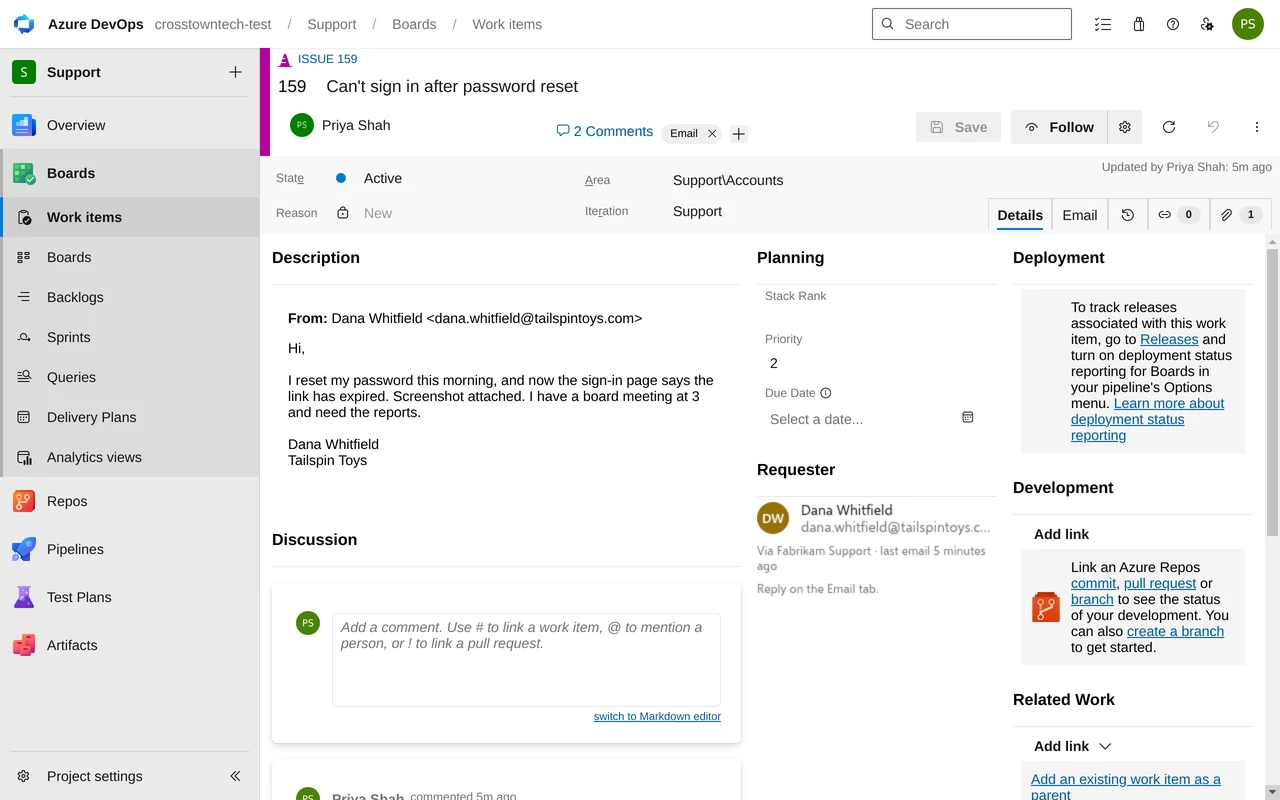
The subject becomes the title, the message the description, and attachments are attached. A Requester group on the form shows who wrote in and links to the Email tab.
When the requester writes back, the answer is added to the same work item, without the quoted history. An answer after the request was resolved reopens it.
See it in 87 seconds
Connect a mailbox, see an email become a work item, reply from the Email tab and get the answer back.
Control what gets in, and what goes out
Each desk has Defaults, Senders, Emails and Activity.
Senders
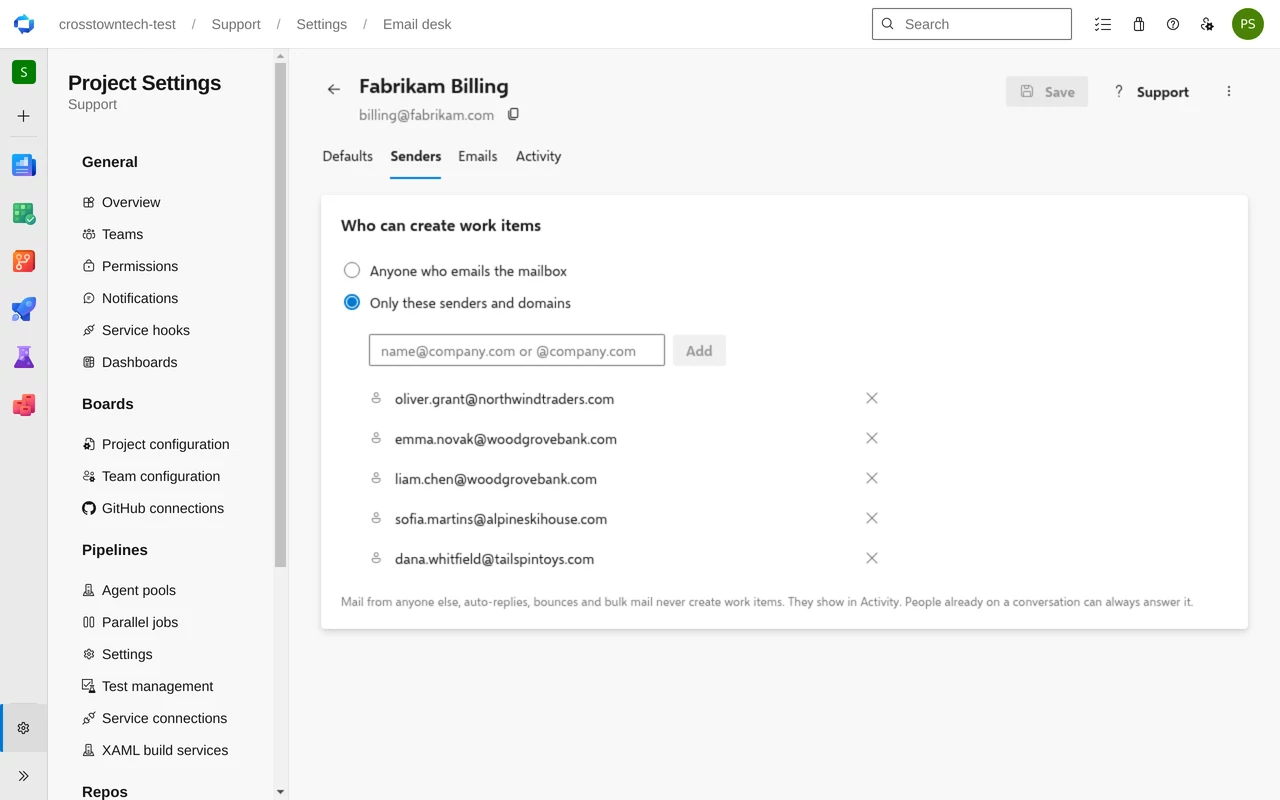
Anyone, or only the people you list
Let anyone who emails the mailbox create work items, or only listed addresses and domains. Auto-replies, bounces, bulk mail and mail loops never create work items. People already on a conversation can always answer it.
Automatic emails
Keep requesters in the loop
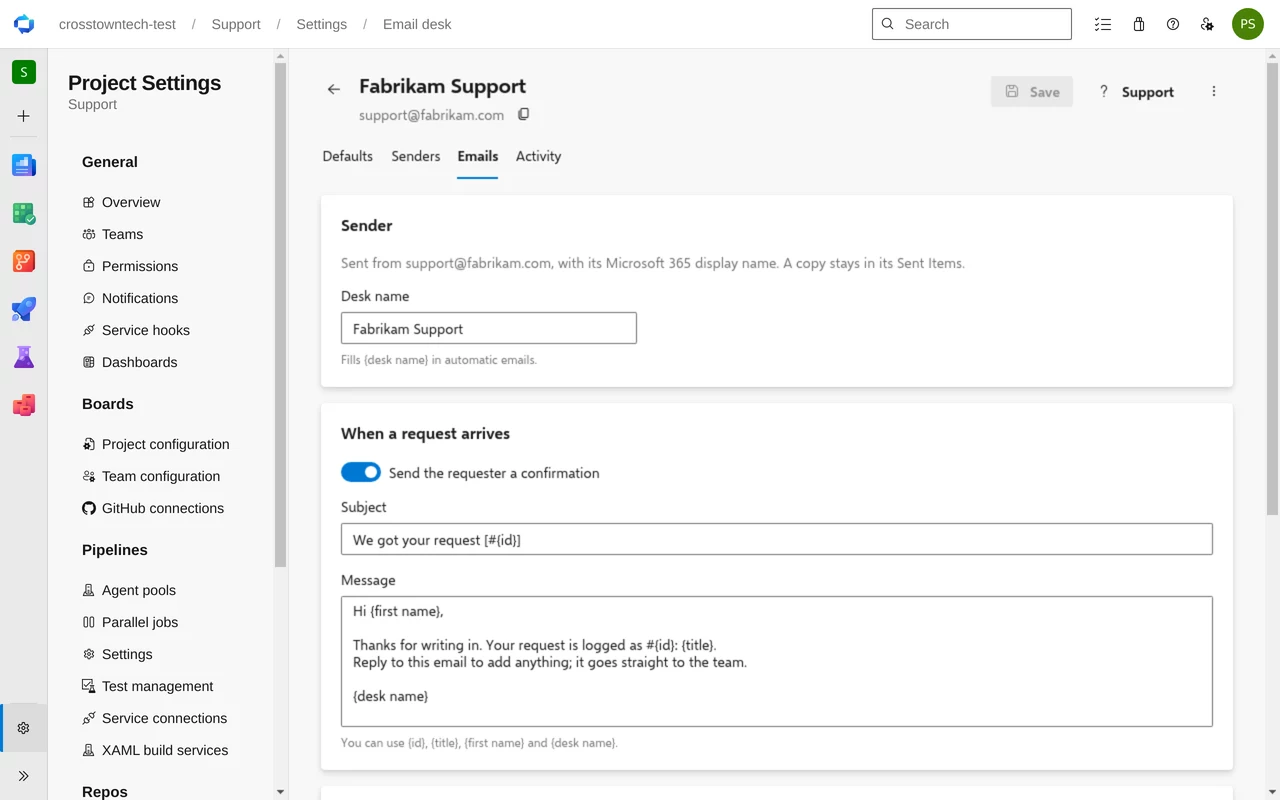
Send a confirmation when a request arrives and an email when it's resolved, on the closing states you pick. Edit the subject and message, with the request number, title, first name and desk name filled in.
Every email goes out from the desk mailbox with its Microsoft 365 display name, and a copy stays in its Sent Items.
Activity
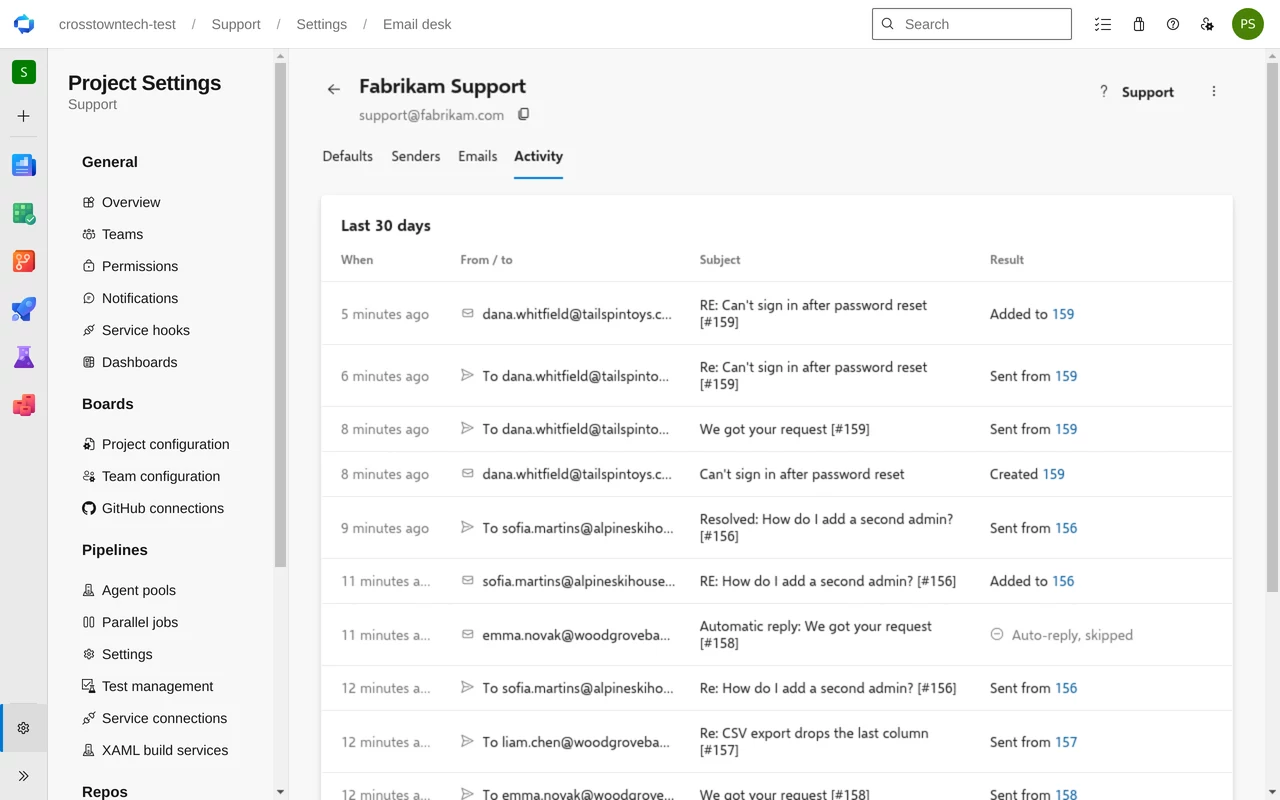
Every email, and what became of it
Each desk lists the email it received and sent in the last 30 days: created a work item, added to one, sent, or kept out and why. Mail that can't be filed yet waits, and is filed once the desk is fixed.
Screenshots and video: the extension in a demo Azure DevOps organization, with sample names.
Up and running in a few minutes
- InstallAdd Email Service Desk to your organization from the Visual Studio Marketplace.
- Connect onceOpen Project settings → Email desk and select Connect, so emails become work items even when nobody is signed in.
- Add a deskSelect New desk, enter your support mailbox, pick the work item type and area, and allow access.
Questions
How do I create Azure DevOps work items from emails?
Install Email Service Desk, open Project settings → Email desk and add a desk for your support mailbox. Every new email in that mailbox becomes a work item with the desk's type, area, assignee, tags and priority. The subject becomes the title, the message the description, and attachments are attached to the work item.
Can I reply to the requester by email from the work item?
Yes. The work item gets an Email tab. Write your reply there, add people on Cc or attach files, and select Send. It goes out from the desk's own mailbox, and a copy stays in that mailbox's Sent Items. When the requester answers, the answer is added to the same work item.
Which mailbox does it use?
Your own. Each desk is a shared or user mailbox in your Microsoft 365, such as support@yourcompany.com. A project can have several desks, one per mailbox, each with its own work item type, area and assignee.
Who has to allow access to the mailbox?
A Microsoft 365 administrator (Global Administrator or Privileged Role Administrator), once per Azure DevOps organization. When you add a desk, select Allow access if you are that administrator, or copy the link and send it to them. The desk connects by itself once they allow it.
Can it read other mailboxes?
It opens only the mailboxes connected as desks, and only mail that arrives after the desk is added. Microsoft grants mail access for the whole tenant, so your administrator can limit the app to the desk mailboxes with Exchange Online RBAC for Applications. How.
Do comments on the work item go to the requester?
No. Only what you send from the Email tab, and the automatic received and resolved emails if you turn them on, reach the requester. Discussion comments stay with the team.
What about spam, auto-replies and mail loops?
Auto-replies, bounces, bulk mail and mail loops never become work items. A desk can also take mail only from the senders and domains you list. Everything that was kept out shows in the desk's Activity, with the reason. What the extension reads and stores.
Stop retyping emails into work items
Connect the mailbox once. Every email lands where the team works.
Free trial. Questions? Contact support.